
Weekly planner app
See Your Whole Week — With Your Calendar Already on the Page. A weekly planner app for your schedule, tasks and notes
Open the week and your Apple or Google Calendar events are already there. Add the week's tasks, priorities and notes around them — by hand or by typing. Ultimate Planner is a weekly planner app for iPad, iPhone, Android and the web.
iPad, iPhone, Android and the web.
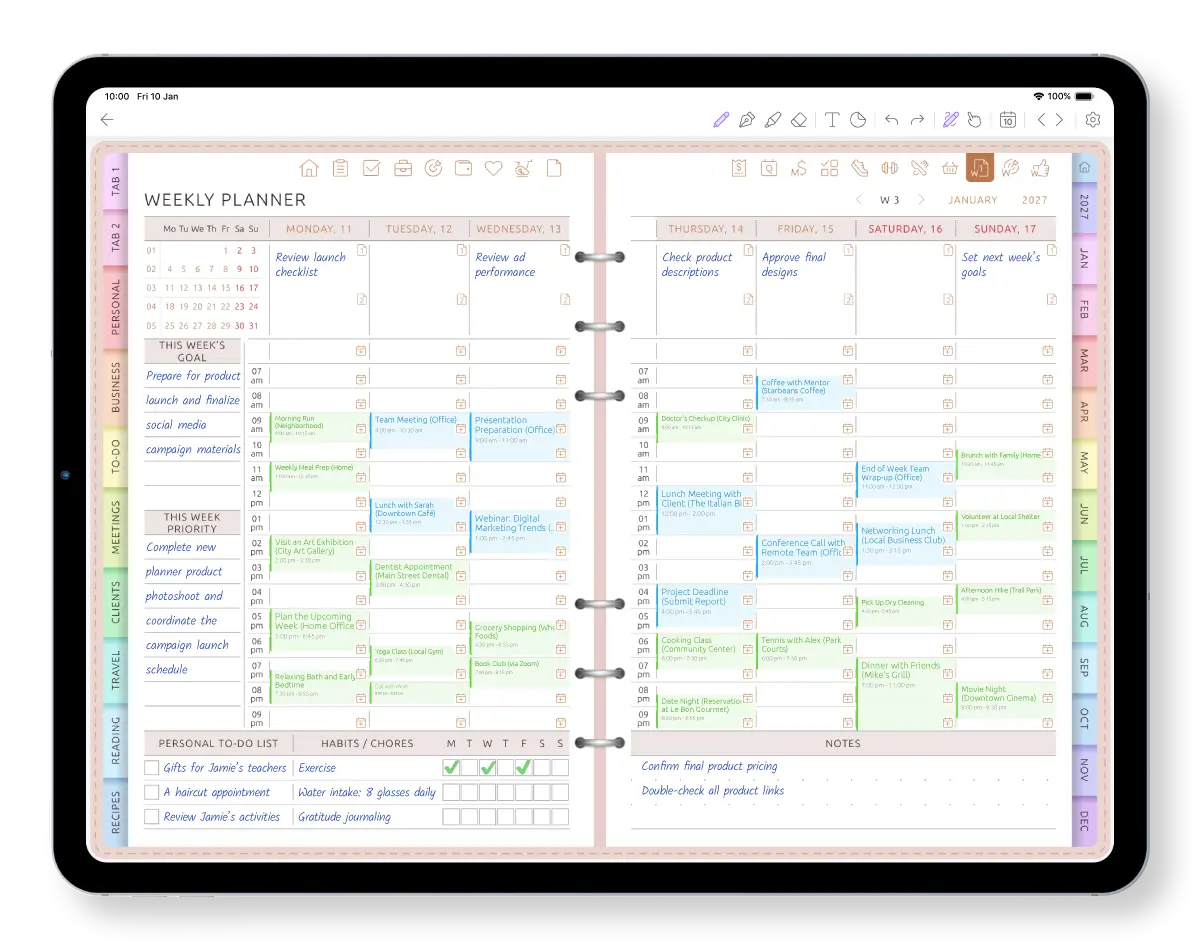
Start with the week that is already happening
Open the weekly page and the events from your connected Apple and Google calendars are already placed in the schedule. See the time that is booked before deciding where tasks, priorities and personal plans can actually fit.
Work and personal calendars can share the same view. If an event moves, drag it to another time or resize it on the page; the change is saved back to your calendar.
- Calendar events, weekly tasks, priorities and notes on one spread
- Choose Sunday or Monday as the first day of the week
- Use 12- or 24-hour time; Saturday and Sunday each keep their own day
- Tap any day to open its daily page
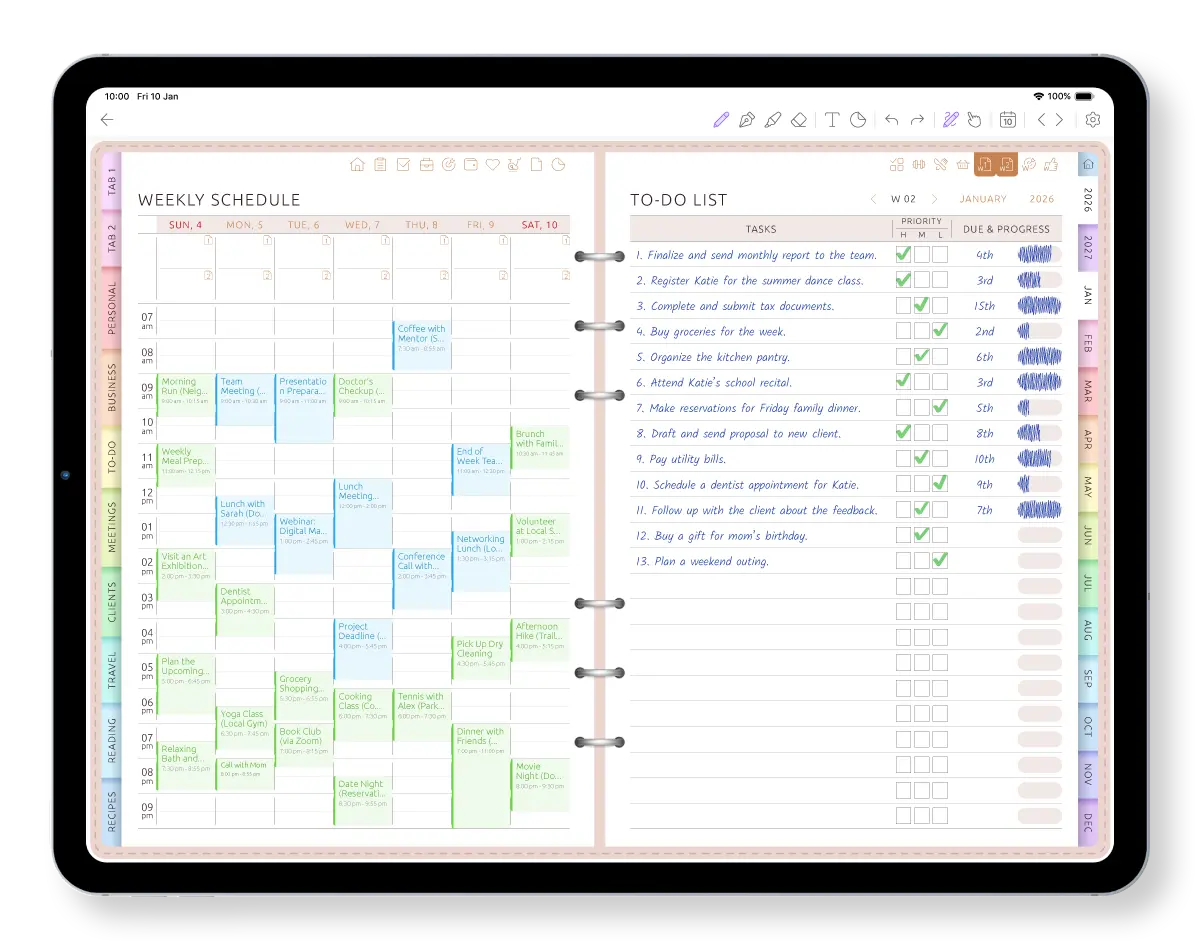
See a week shaped around your calendar
Watch calendar events appear in the weekly schedule before handwritten notes and tasks are added around them.
Plan the week in four decisions
Your appointments are already in place. Use them as the frame for the week instead of rebuilding the schedule from a blank page.
-
See what is booked
Review the work, family and personal events already in the weekly schedule.
-
Choose priorities
Decide what matters this week and add it to the priority or weekly goal area.
-
Place tasks and notes
Write or type the tasks that fit around the time that is still available.
-
Track the routine
Mark habits and chores manually as the week moves forward.
Nothing rolls over automatically. At the end of the week, you decide which unfinished tasks still matter and where they belong next.
50+ weekly layouts — change them without losing your plans
Choose an hourly grid, day boxes, a notes page or seven columns. If the way you plan changes, switch the weekly layout without rebuilding the planner or losing the information already in it.
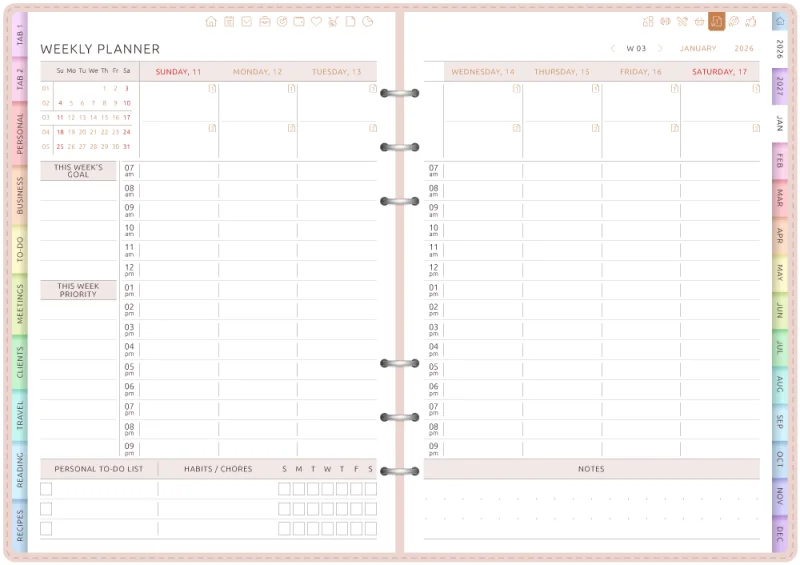
Hour by hour
The whole week on a time grid, with this week's goal, a priority and a habits and chores row.
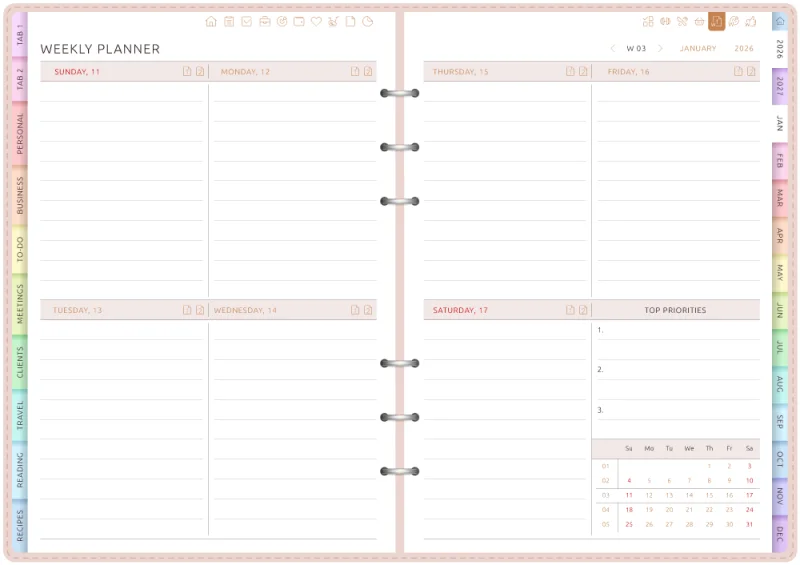
Days in boxes
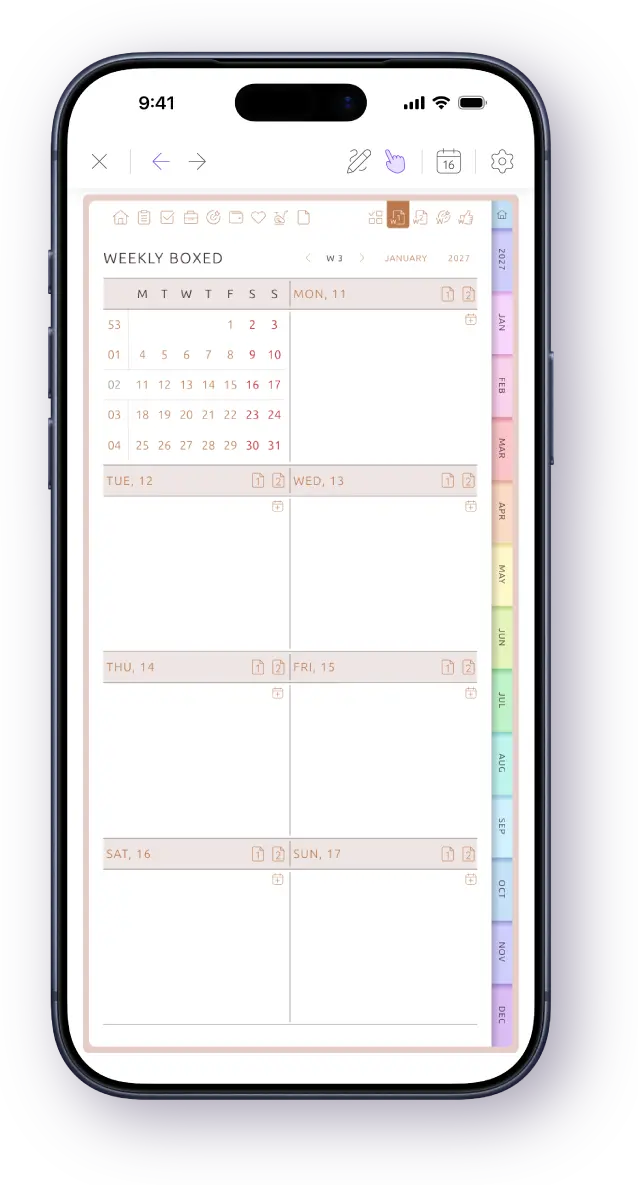
Square boxes for each day, top priorities and the month at a glance.
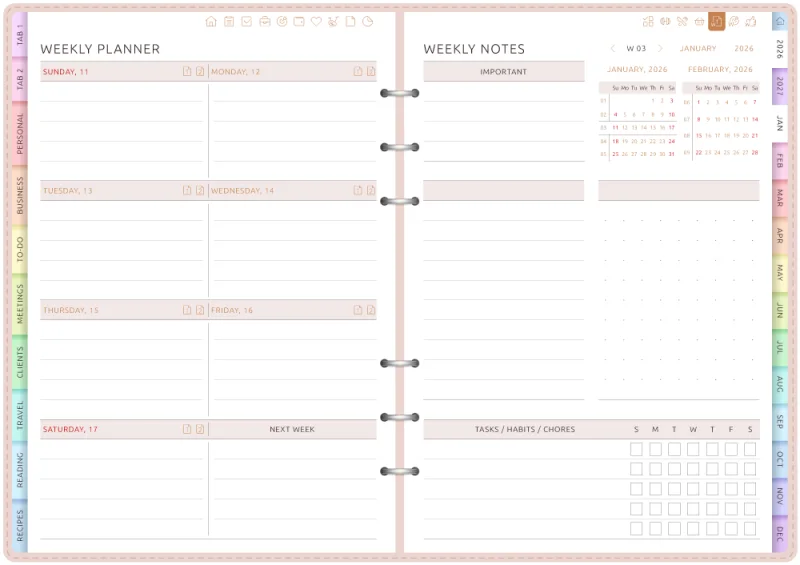
Week plus notes
The days on one page, a whole page for notes and the important stuff on the other.
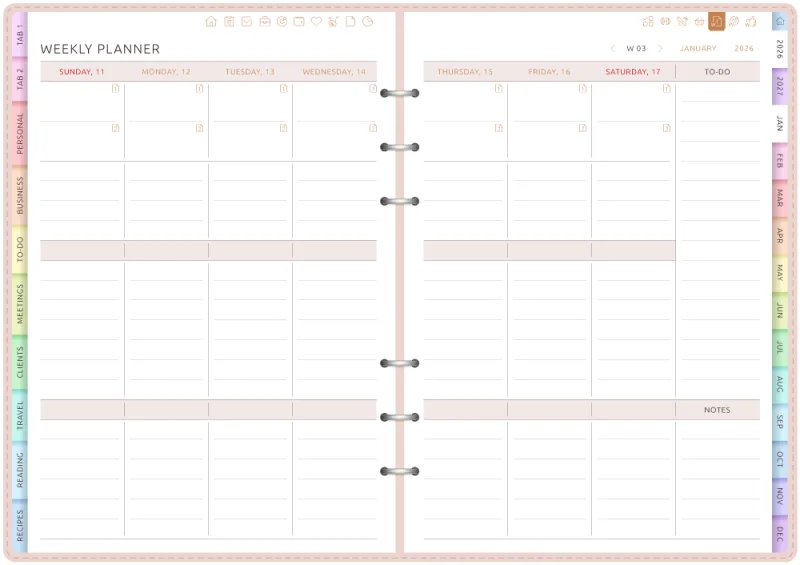
Seven columns
One column per day, with a to-do list and notes for the week beside them.
Plan next week tonight.
On iPad, iPhone, Android or the web.
Type, handwrite, draw and add stickers
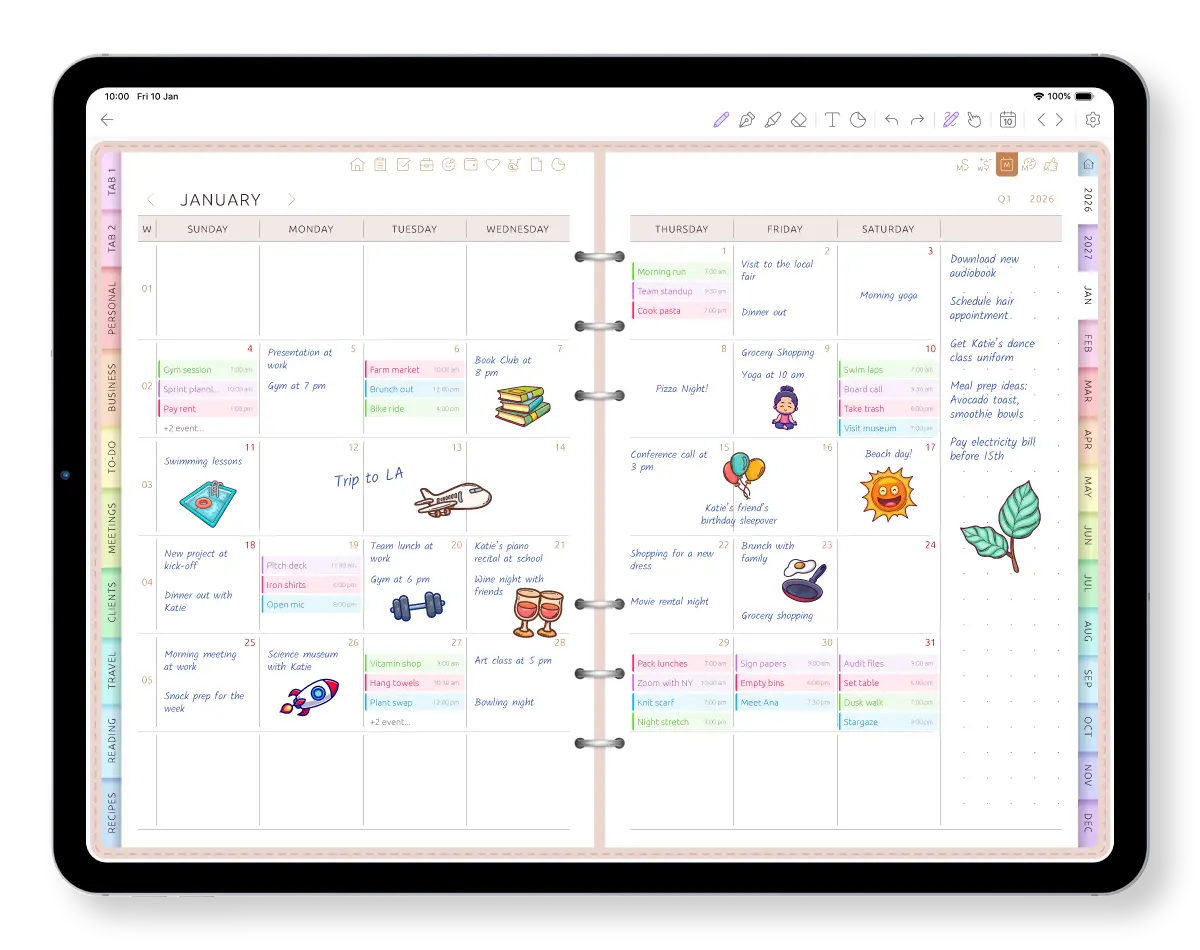
Type a task when the keyboard is faster, then pick up Apple Pencil or a stylus to circle Friday, add a handwritten note or draw an arrow between plans. Handwriting and typed text can stay together on the same weekly page.
Use a pen, marker or highlighter, move things with the lasso, insert your own images and add stickers wherever they help you read the week.
- Handwriting and typing on the same page
- Pen, marker, highlighter, eraser and lasso
- Stickers and your own images
This week, on every device
Use the web app on a computer when you want the whole week on a larger screen. Check the plan on your phone while you are out, then open the same page on iPad or an Android tablet when you want to write by hand. It's one planner, always in sync.
The calendar button opens This Week from anywhere in the planner.
Frequently Asked Questions
See your whole week. Then plan it.
Connect your calendar, pick a weekly spread and plan next week in one sitting — on iPad, iPhone, Android or the web.