
 vs
vs
Penly App + a PDF Planner vs Ultimate Planner App
Both let you write by hand with a stylus. But a PDF is fixed when it is created, while Ultimate Planner can change as your planning needs change.
Penly is a well-loved Android app for hyperlinked PDF planners and stylus notes. This page compares one specific workflow — a PDF planner inside Penly — with a purpose-built planner app.
Fixed PDF → Adaptable Planner
Choose Ultimate Planner if…
- You want to change structure after you start
- Your schedule changes often
- You want calendar events inside planner pages
- You plan on several devices
- You do not want to set up a new planner every year
Choose Penly + PDF if…
- You plan only on an Android tablet or a Chromebook
- You'd rather pay once for the app
- You already own hyperlinked PDF planners you love
- You decorate a lot: bulk sticker import, collections, custom fonts
- You also want a PDF notebook for lined, dotted and grid notes
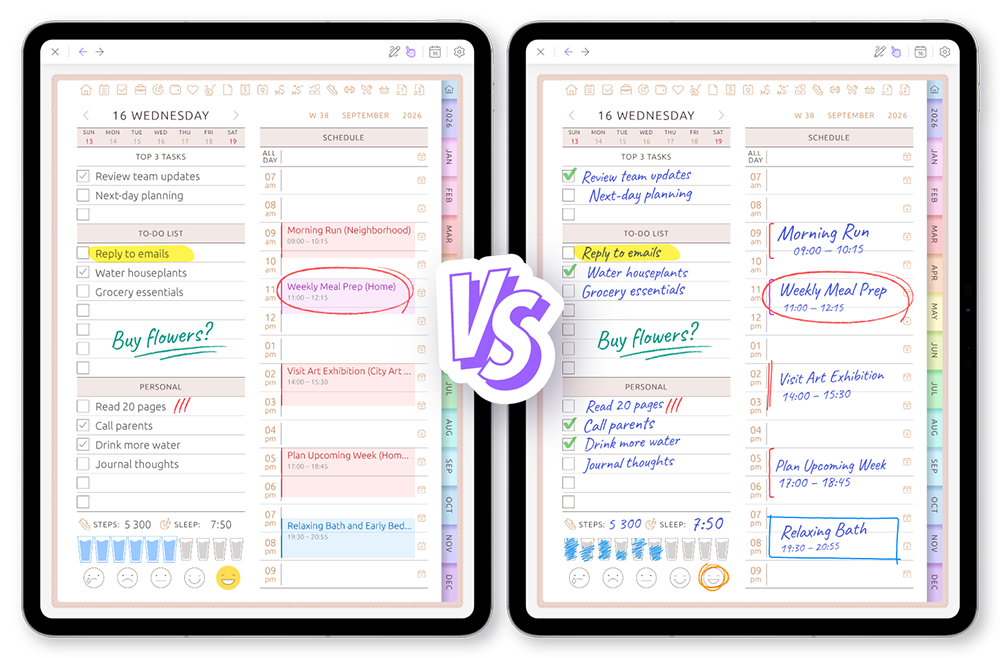
See the difference: a PDF planner and the app, side by side
The key difference is not handwriting. It is what happens after your planner has already been set up and filled with content.
The short version
Handwriting
Ultimate Planner
Yes
Yes
Keyboard input
Ultimate Planner
Built into planner fields
Added as text objects on top of the page
Ultimate Planner
Reconfigure the current planner
Usually means replacing or rebuilding the planner
Keep content when structure changes
Ultimate Planner
Content on unchanged layouts remains
Notes stay behind in the old PDF
Ultimate Planner
Switch orientation any time
Fixed by the PDF file
Ultimate Planner
Live Today, This week and This month shortcuts
Static links built into the PDF
Ultimate Planner
Navigate to any year
Tied to the year the PDF covers
Ultimate Planner
Displayed and managed inside planner views
External links, shortcuts or a separate app
Ultimate Planner
Rename headers in place
Printed into the PDF
Ultimate Planner
Change without replacing the planner
Replace backgrounds or pages
| Capability | Ultimate Planner | Penly + PDF planner |
|---|---|---|
| Handwriting | Yes | Yes |
| Keyboard input | Built into planner fields | Added as text objects on top of the page |
| Change layouts after starting | Reconfigure the current planner | Usually means replacing or rebuilding the planner |
| Keep content when structure changes | Content on unchanged layouts remains | Notes stay behind in the old PDF |
| Portrait and landscape | Switch orientation any time | Fixed by the PDF file |
| Jump to today | Live Today, This week and This month shortcuts | Static links built into the PDF |
| Calendar years | Navigate to any year | Tied to the year the PDF covers |
| Calendar events | Displayed and managed inside planner views | External links, shortcuts or a separate app |
| Rename block headings | Rename headers in place | Printed into the PDF |
| Themes and covers | Change without replacing the planner | Replace backgrounds or pages |
Change the planner after you start
Your planner should not be locked on day one
Two weeks after starting, you realize the weekly layout works — but the daily layout does not.
A PDF planner is generated once: changing its daily layout means downloading or creating a new file and moving your notes by hand. Ultimate Planner reconfigures the planner you are already using — switch the daily layout, rename headers, change the theme — while every other page keeps its content.
Ultimate Planner
- Open planner settings
- Pick a different daily layout
- Rename headers if you like
- Weekly pages and their content stay as they were
PDF workflow
- Find or generate another planner PDF
- Import it as a new document
- Your old notes stay in the previous file
- Re-copy anything you still need
See the planner the way you need it
Write in portrait. Review in landscape.
A PDF page has one orientation, chosen when the file was made. Ultimate Planner renders the same planner in portrait for comfortable handwriting and in landscape for a wider weekly overview — you switch on the spot instead of choosing forever at download time.
Ultimate Planner
- Rotate the device or toggle orientation
- The same layout re-renders for the new format
- Your notes stay where they belong
PDF workflow
- Orientation is baked into the file
- A landscape version is a separate PDF
- Switching means maintaining two planners
A planner that knows the date
Open the day you actually need
PDF planners navigate through hyperlinks created in advance, for one specific year. Ultimate Planner navigates by the calendar itself: jump to today, this week or this month, or pick any date in any year — 2026, 2027 or later — without importing a new planner.
Ultimate Planner
- Today, This week and This month shortcuts
- The date picker opens the matching page
- Move between years freely
PDF workflow
- Tap links pre-built into the document
- Pages exist only for the covered year
- A new year usually means a new PDF
Your calendar inside your planner
Plan around your real calendar
A 2:00 PM meeting moves to 4:00 PM.
With a PDF planner the calendar lives in another app: when a meeting moves you erase the old entry, write the new time and rearrange tasks by hand. Ultimate Planner syncs Apple and Google Calendar into the layout, so the event updates itself — you only re-plan your own tasks.
Ultimate Planner
- The event syncs automatically
- The new time shows inside the weekly layout
- Open or edit the event right in the planner
- Only your own tasks need re-planning
PDF workflow
- The change happens in Apple or Google Calendar
- Go back to the PDF planner
- Erase the old entry and write the new time
- Rebuild handwritten tasks around it
Plan the way that works right now
Write or type
Use the S Pen when you want to write. Use the keyboard when speed matters — planner fields accept both.
Not just Android
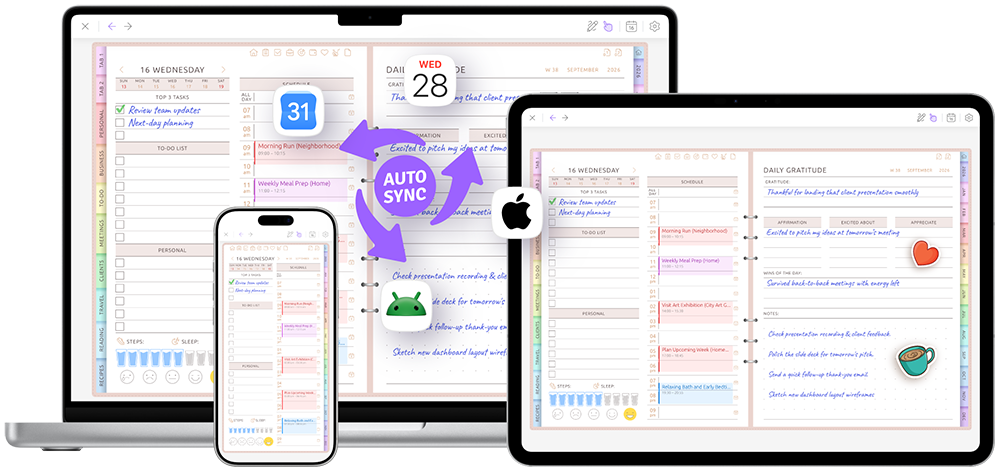
Penly lives on Android and Chromebook. Ultimate Planner keeps the same planner on Android, iPhone, iPad and the web.
Your calendar on the page
Google and Apple Calendar events appear on your daily, weekly and monthly pages — no copying them in by hand.
Good tools for different planning styles
Penly is excellent for handwriting, document annotation and general note-taking. A PDF planner inside it can be a great choice when you want a stable, decorative digital notebook.
Ultimate Planner is built for people who want the planner itself to stay configurable, date-aware and connected to their calendar. It does not rearrange your handwriting automatically — it removes the need to recreate the structure and the calendar layer by hand.
Which planning workflow fits you?
Ultimate Planner fits better when…
- Your layout needs may change mid-year
- The calendar is part of everyday planning
- You plan across iPad, Android and the web
- You do not want a new planner every year
- You want to restyle without starting over
A PDF planner is probably enough when…
- The structure is final and you know it works
- Most notes happen on one device
- You are fine duplicating calendar events by hand
- You want one specific, beautifully designed PDF
Want the full feature matrix? See the complete Penly vs Ultimate Planner comparison table.
Frequently asked questions
No. Penly is a one-time purchase on Google Play, with a 7-day refund window. There's no Penly subscription.
No. Penly runs on Android phones and tablets and on Chromebooks through Google Play. Ultimate Planner runs on Android, iPhone, iPad and in a web browser on Mac, Windows or Chromebook.
No. Penly is PDF-first, so calendar events don't appear on its planner pages. In Ultimate Planner, Google and Apple Calendar events show up on your daily, weekly and monthly pages.
On Android, people often compare Penly with Samsung Notes, Xodo and GoodNotes for PDF planners. If you want a planner app rather than a PDF, Ultimate Planner works on Android, iPhone, iPad and the web.
Yes. Ultimate Planner supports the S Pen and other styluses on Android, with palm rejection — and Apple Pencil on iPad.
Yes. Every planner field accepts typed text, and you can mix typing and handwriting on the same page.
No. The planner isn't tied to one year — open next year in the same planner, without importing a new file.
Of course. Many people keep a PDF notebook for notes and journaling and plan their weeks in Ultimate Planner.
Try one real week in a planner that can change with you
Change a layout, connect your calendar and open the same plan on another device.
Watch the comparison again