
Calendar planner · 2026–2034
Your 2026 Planner Ends in December. This One Doesn't.
Open 2027 — or any available year — inside the same digital calendar planner. Your sections, layouts and theme are already there, so there's no new planner to buy, import or set up.
Start today. Plan by year, quarter, month, week or day, and write with Apple Pencil, a stylus or the keyboard.
iPad, iPhone, Android and the web.
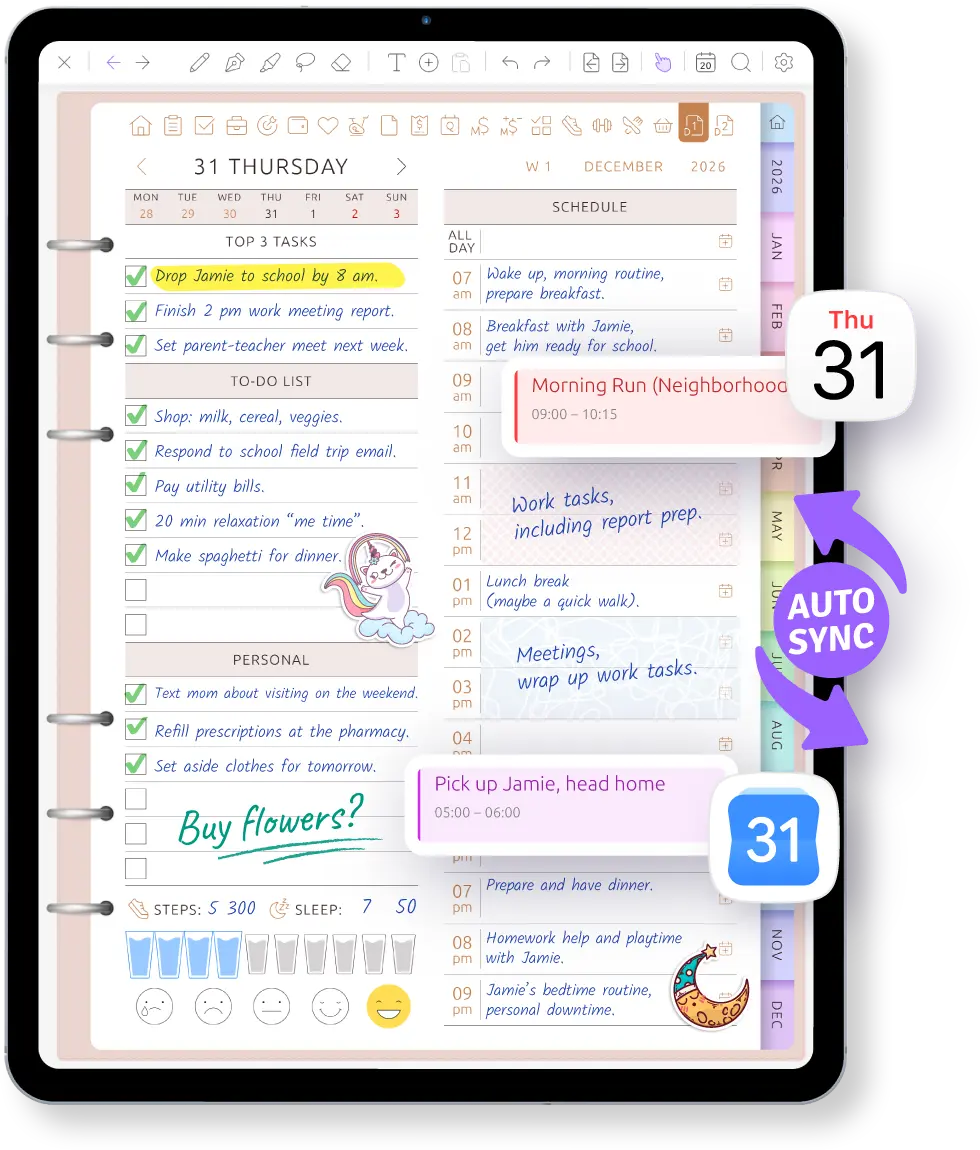
2027 is already inside your planner
Planning a wedding next spring or a course that starts next fall? Open 2027 now and write it on the page where it belongs.
Go to Year opens any year from 2026 to 2034 inside the same planner, already set up with your sections, layouts and theme. There is no new planner to buy, no PDF to import and no pages to date by hand.
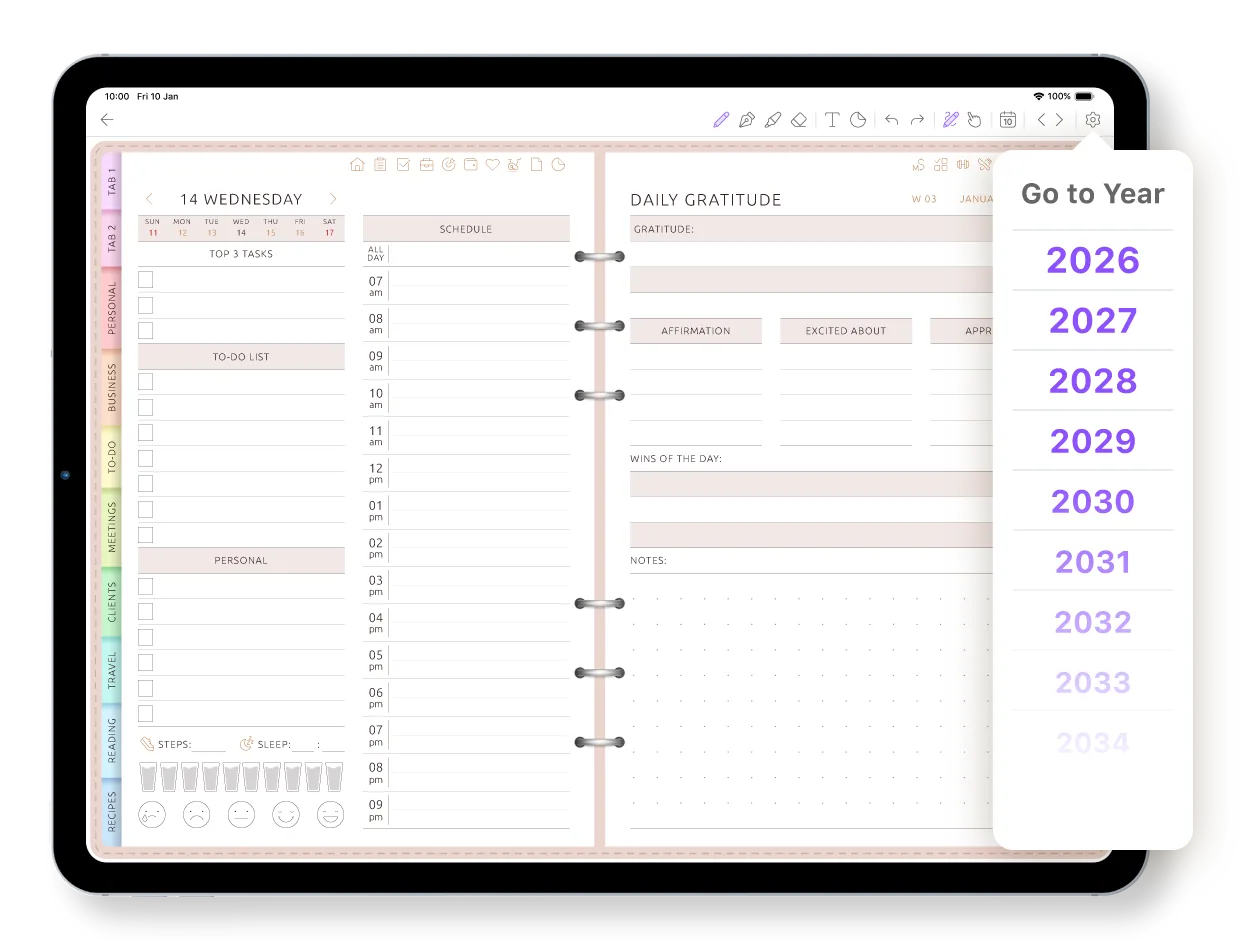
Zoom from the whole year to today in one tap
Yearly, quarterly, monthly and weekly calendar planner pages, plus a page for every day — all connected. Tap a month or a date and you're there, even with the pen in your hand.
-
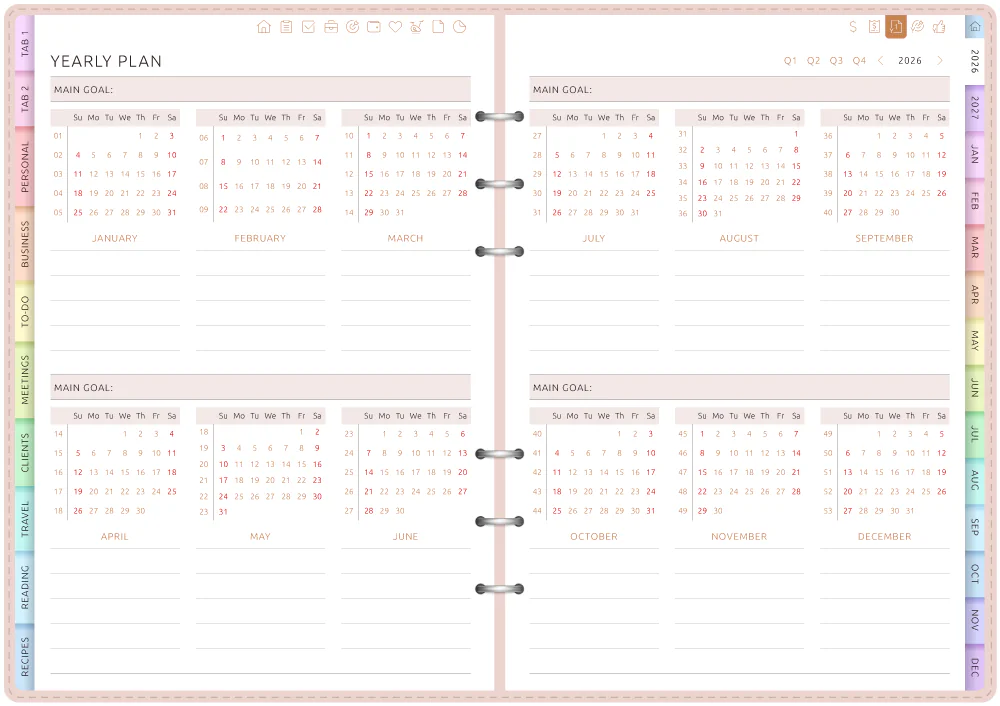
1 · Year
See what's coming
Twelve months at a glance, with a main goal for each quarter. Spot the busy weeks before they arrive.
-
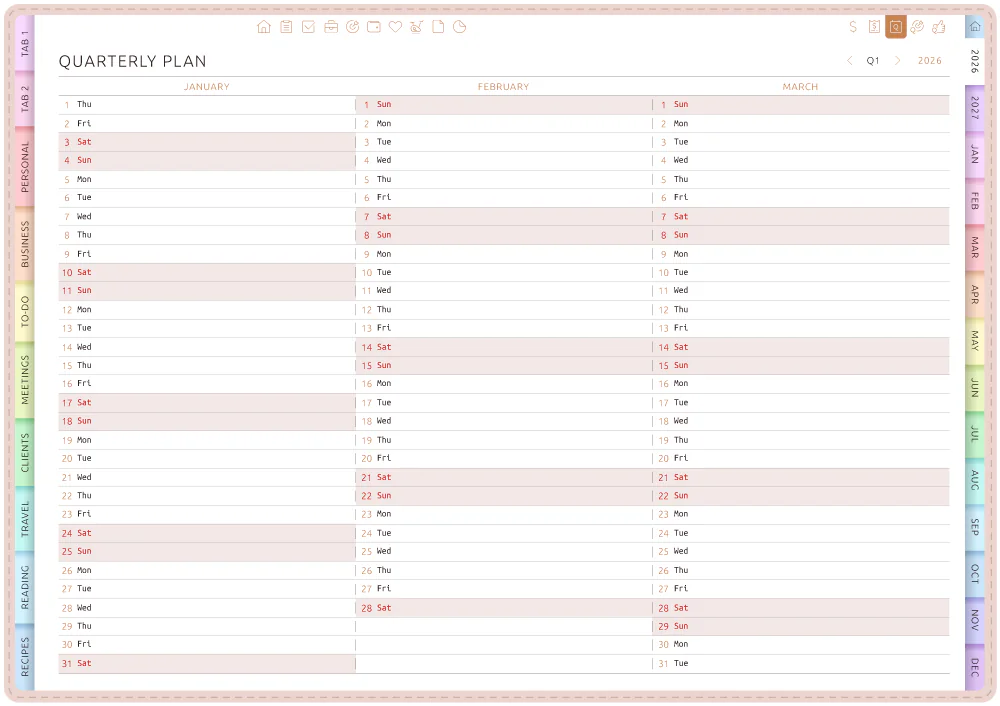
2 · Quarter
Plan in seasons
Three months side by side, one line per day, for projects, trips and school terms.
-
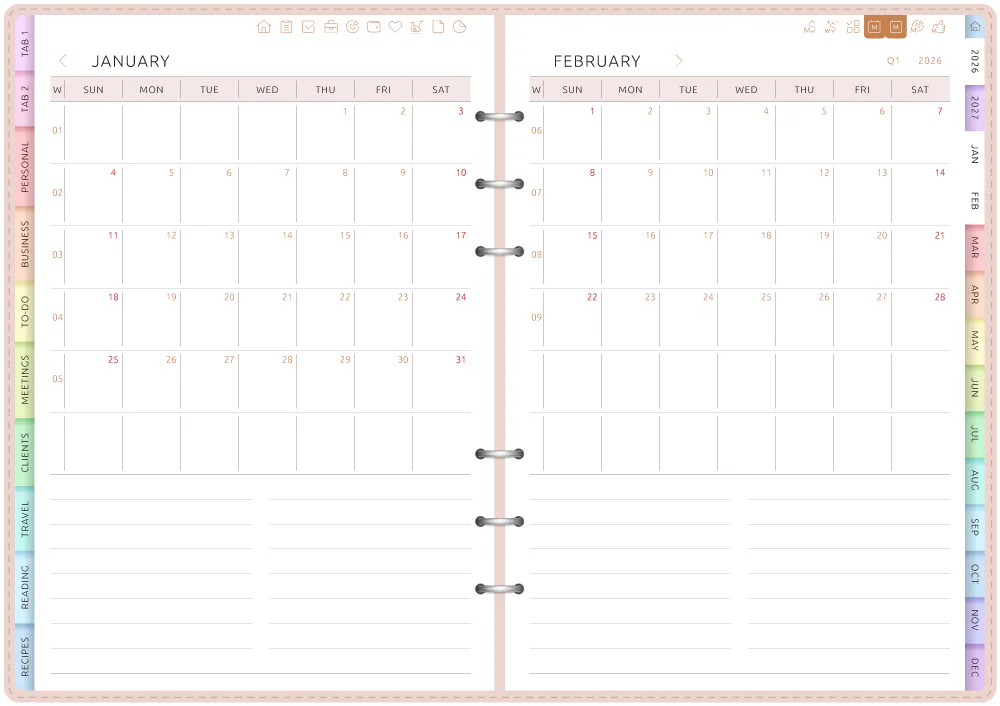
3 · Month
The big picture
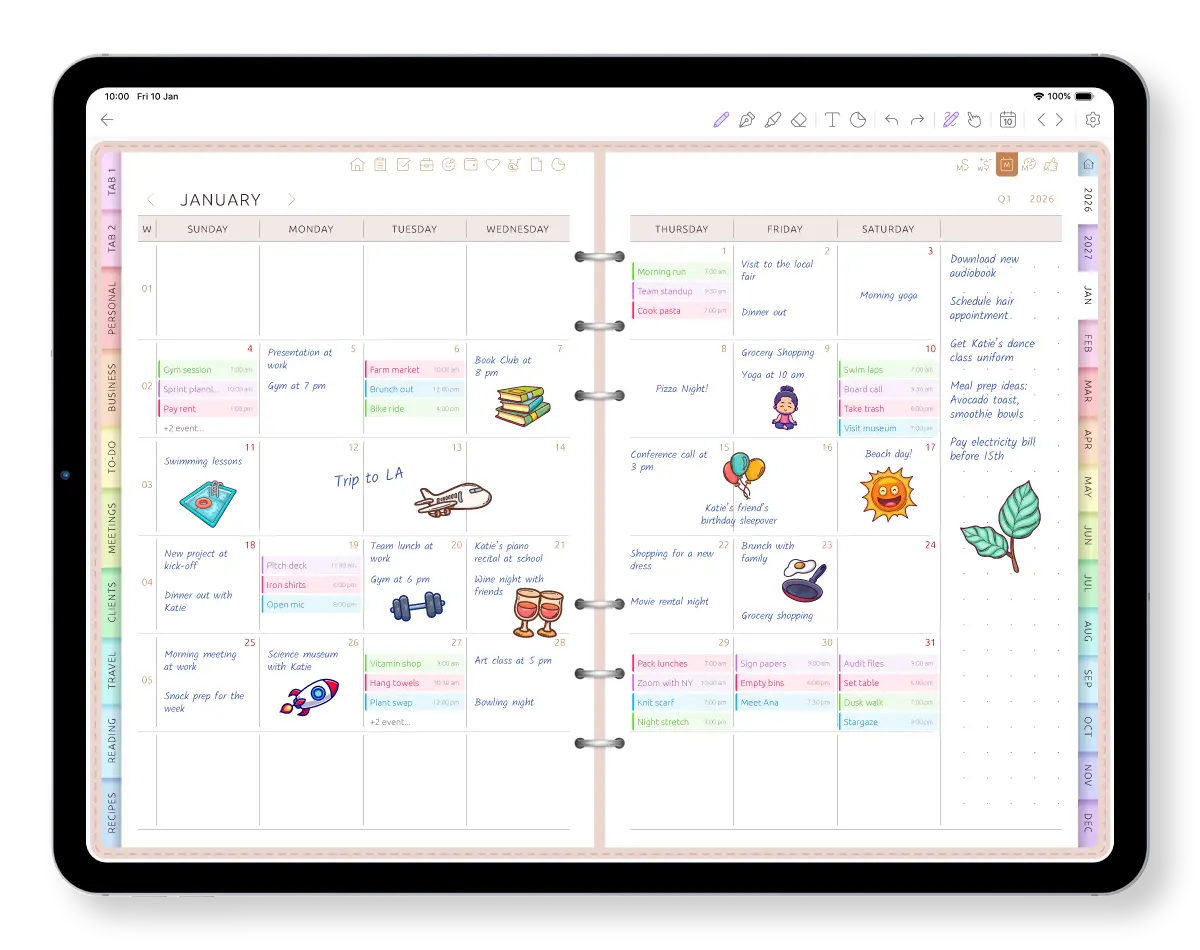
Your monthly planning calendar: your calendar events in the day boxes, plus room for birthdays, deadlines and trips, with lines below for notes.
-
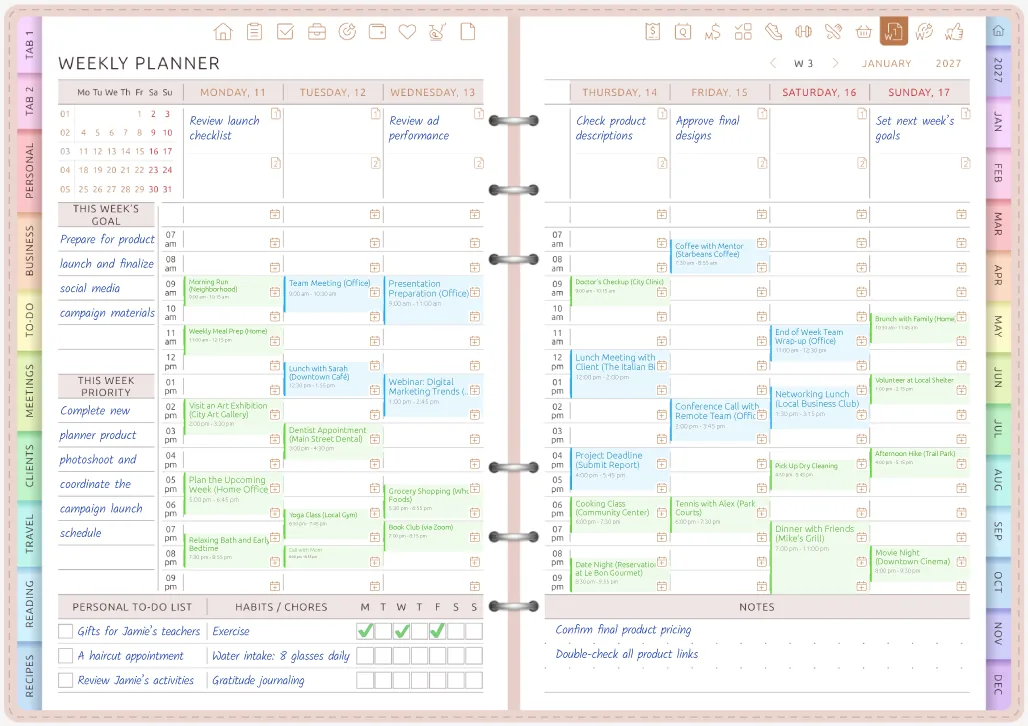
4 · Week
Where plans become hours
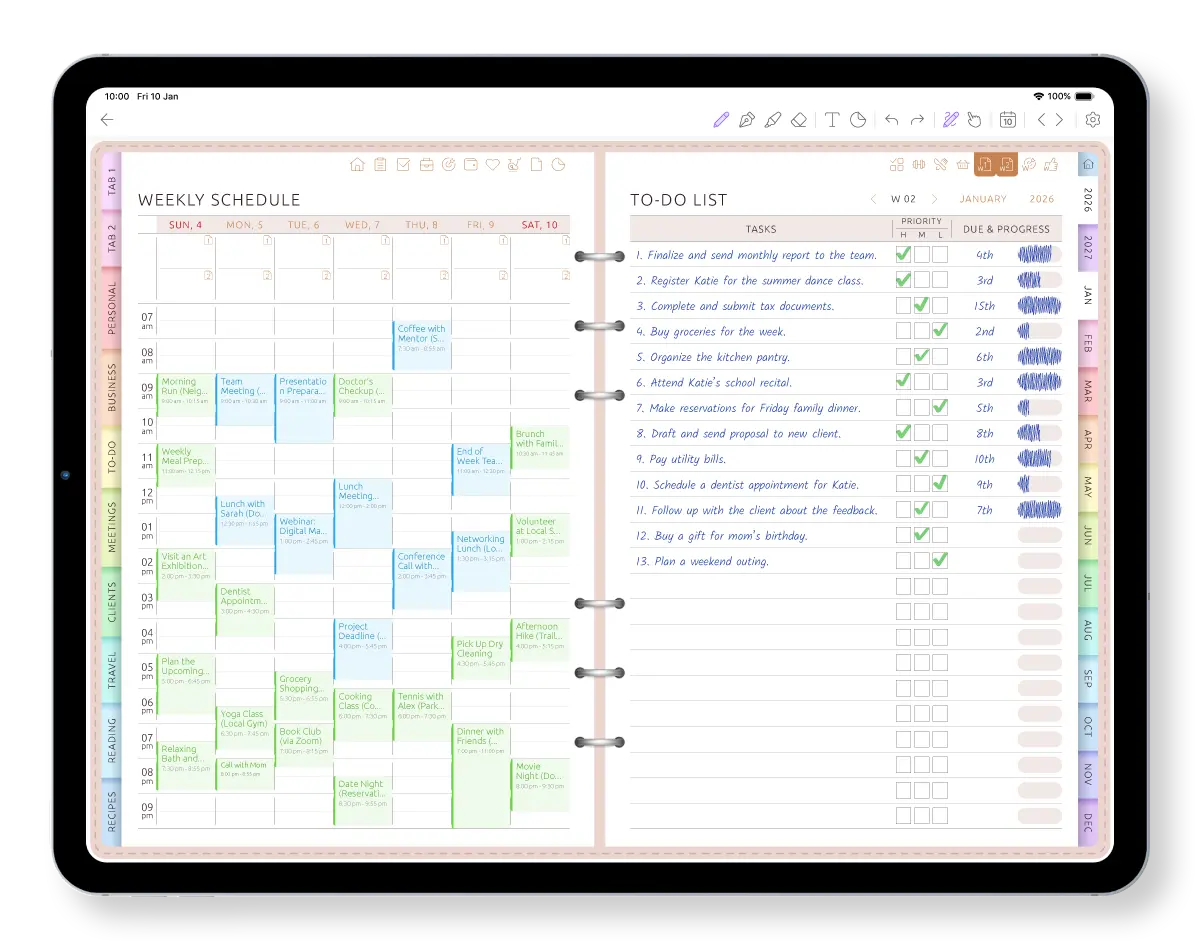
A weekly planner calendar: seven days with hourly rows, the week's goal and priority, and a to-do list.
-
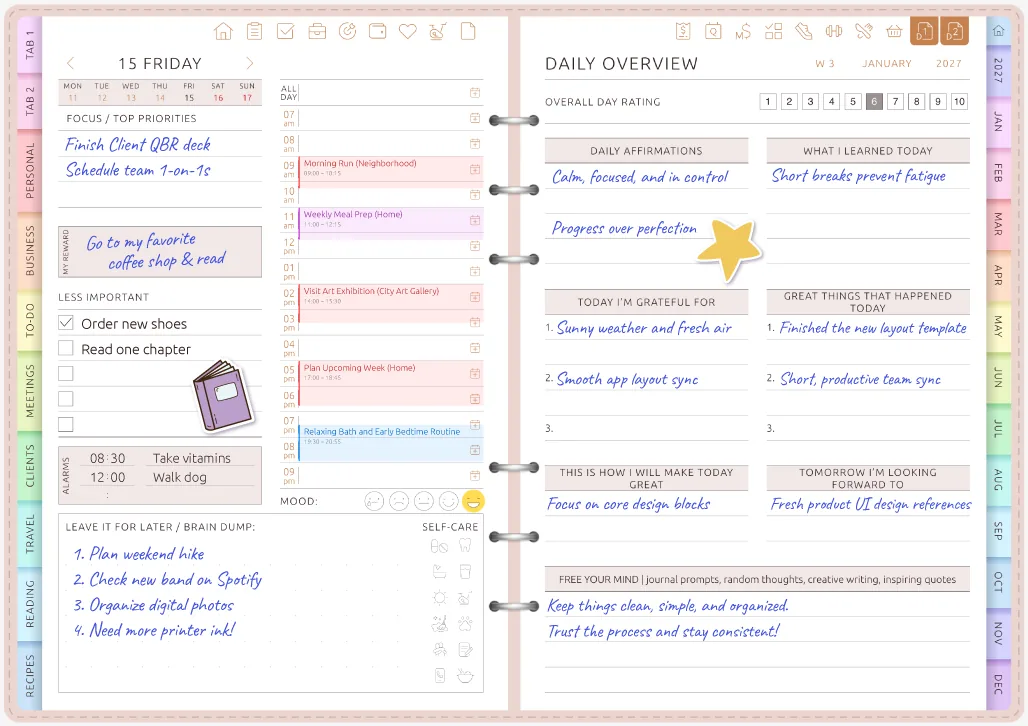
5 · Day
Today, in detail
Top priorities, an hourly schedule and a brain-dump box for one day.
Month tabs run down the edge of every page, and the Today, This Week, Month, Quarter and Year buttons take you straight to the current page.
Start where you are — and change it when life changes
A planner should fit the year you actually have, not the year you imagined in January.
-
Start today
You didn't begin on January 1
Problem
You find the right planner in March or return after two busy weeks, and the blank dated pages behind you make it feel as if you're already late.
Solution
Tap Daily in the index or Today in the calendar menu — you're instantly on today's page.
-
Change the system
Your routine no longer fits the layout
Problem
A new job, semester or family schedule can make the weekly layout you chose in January inconvenient by September.
Solution
Swap the page layout without rebuilding the planner. The selected page changes, while all your handwritten and typed data on other pages stays untouched.
-
Plan ahead
Next year is already calling
Problem
A wedding next spring or a course next fall belongs on its actual date — not on a sticky note you'll need to shuffle later.
Solution
Open 2027 in the same planner and add it directly to the calendar page where it belongs — write, type, or schedule.
Start today, adjust the planner when your routine changes, and keep going into next year.
Plan the year you actually have.
Start free on iPad, iPhone, Android, or the web. Tap Today and begin right now.
Only the pages you'll actually use
Planners love to give you everything: habit trackers, budget pages, 365 daily pages. Then most of them stay empty, and every blank page feels like a small failure.
Here you keep what you'll use. Plan mostly by month and week? Switch the daily pages off. Want goals, budget, health or reading pages? Switch them on later without starting over.
- Monthly pages are always there; quarterly, weekly and daily pages are your call
- Several layouts for each: a monthly planner calendar grid across both pages, one month per page, a list of dates, an hourly week or a box for each day
- Week starts on Sunday or Monday, 12- or 24-hour time, and your own schedule hours
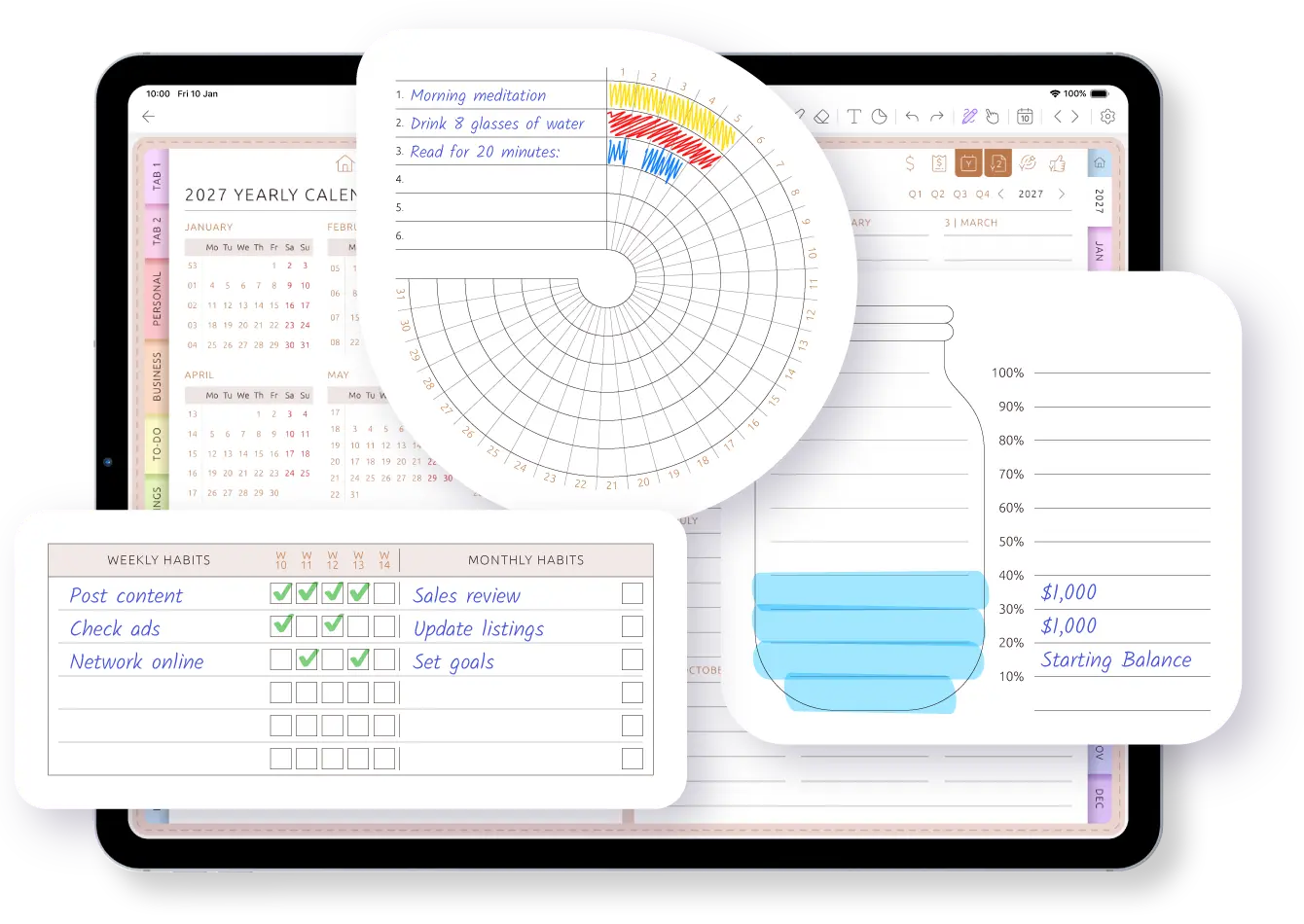
Your routine changed. Your planner can too.
A new job, a new semester or a different family schedule can make last month's weekly layout inconvenient.
Switch layouts anytime. Your handwritten and typed data on other pages stays exactly where it is.
- Choose a different daily, weekly or monthly layout
- Keep the sections, theme and other pages you already set up
- Continue in the same planner instead of importing a new PDF
Write in the boxes the way you would on paper
What people miss most about a paper calendar is the freedom: write big on the day that matters, circle a deadline, draw an arrow to Friday. A calendar app gives every event the same gray box.
Here you write on the page itself with Apple Pencil or a stylus, type when it's quicker, and mix both on one page. Add stickers, pick a theme, and turn the iPad sideways for a landscape spread.
- Pencil, marker, highlighter, eraser, lasso, text, stickers and images, with undo
- 10+ themes, 50+ covers and 5,000+ stickers
Your appointments are already on the page
Connect Apple Calendar or Google Calendar after you sign up, and your events appear on your daily, weekly and monthly pages. The month shows what's booked at a glance, the week you plan starts with it, and the yearly pages stay yours to write on.
When an event changes in your calendar, your page shows the update. Reminders keep coming from your calendar app.
PDF planner or calendar planner app?
Both let you write on a tablet. The difference is what happens when your calendar, routine or year changes.
| PDF planner on a tablet | Ultimate Planner | |
|---|---|---|
| Next year in the same planner | Usually a new dated file and setup | Yes, already set up |
| Start on any day | Depends on whether the PDF is dated or undated | Yes — tap Daily in the index or Today in the calendar menu |
| Jump from month to week to day | With hyperlinks created in the file | Yes, plus Today and This Week buttons |
| Change layouts mid-year | Copy or import template pages; sometimes start a new file | Swap the layout — your notes and entries stay safe on other pages |
| Apple & Google Calendar sync | No — events have to be copied into the PDF | Events appear on daily, weekly and monthly pages and update when the calendar changes |
| Write by hand | Yes, in a compatible notes app | Yes — handwriting and typing on the same page |
| With you on your phone | Depends on the app | Yes — the same account on phone, tablet and web |
A PDF planner can work well when a fixed dated file fits your routine. Ultimate Planner is built for the things that change: calendar events, layouts and the next year. Comparing PDF planner apps? See GoodNotes and Notability.
Frequently asked questions
Set it up once. Plan 2026, 2027 and beyond.
Start free on iPad, iPhone, Android or the web: pick your layouts and start on today. When the year turns, the next one opens in the same planner, already set up.