
Calendar + to-do list
Your Appointments Set the Day. Your To-Do List Fits Around Them. A calendar and to-do list combined in one spread.
Your Google or Apple Calendar events fill the day's schedule automatically. Choose today's Top 3, add the rest of your to-do list beside them, and tick each task off with a tap or pen stroke.
iPad, iPhone, Android and the web.
Four places to plan one Tuesday?
Most days are split like this. Each tool is fine on its own — the trouble is that you have to put the day together in your head.
-
Calendar app
Knows you have a meeting at 10 and the dentist at 3:30. Doesn't know what you need to get done around them.
-
To-do app
Forty tasks, half of them overdue, none of them aware that your afternoon is full.
-
Notes app
The questions for the dentist and the grocery list — somewhere, under some title.
-
Sticky notes
“Call school back.” On the monitor at work, while you're at home.
One page for today
Keep your calendar — it just shows up in your planner. The rest of the day goes on the same page.
- Today's appointments in the schedule, from Google or Apple Calendar
- Your top 3 and the to-do list beside them
- Notes for the day, typed or handwritten
- A checkbox for every task
One page for today
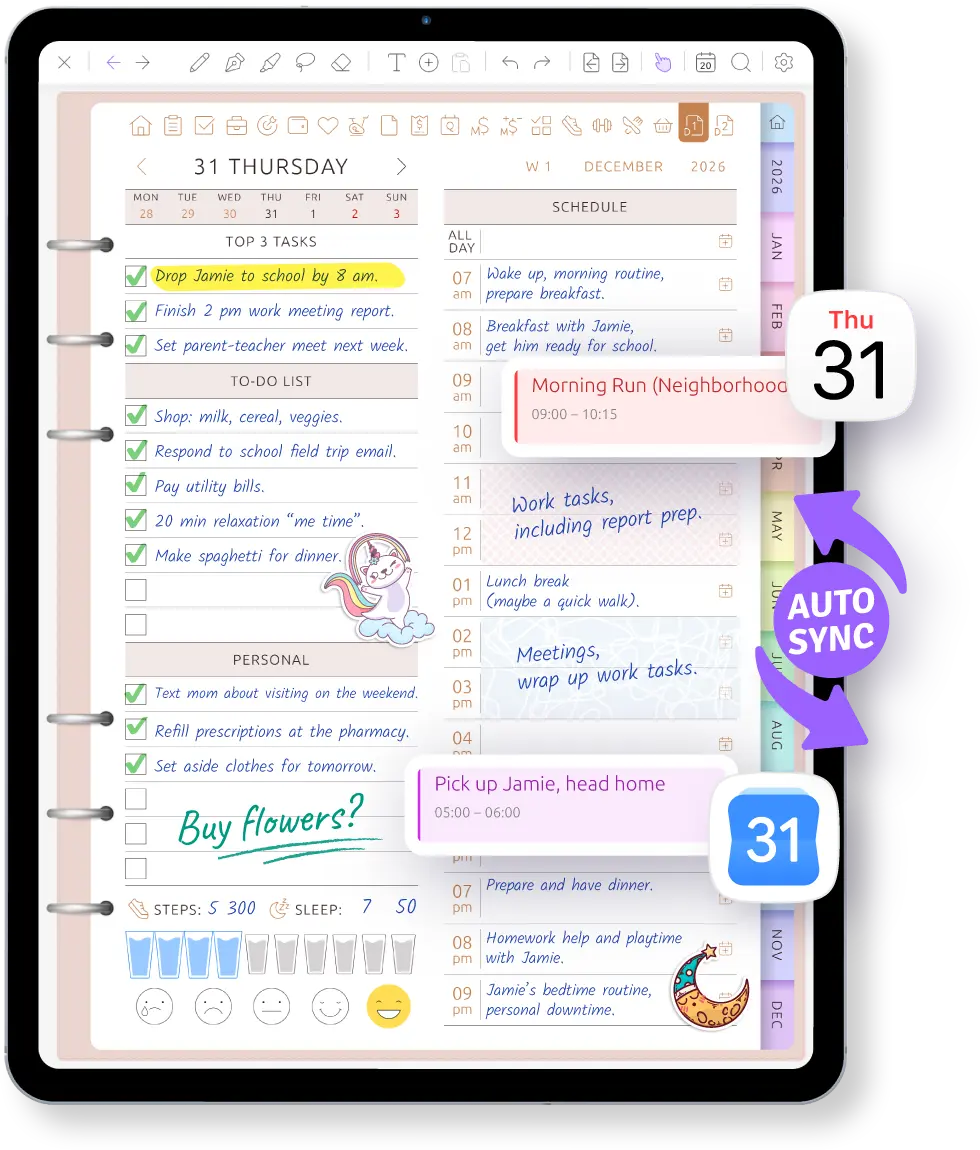
The daily page puts an hourly schedule in one column and your Top 3, checklist and notes in the other. The dentist at 3:30 and the school pickup appear from Google or Apple Calendar on their own; you choose the tasks that fit around them.
Plans changed? Drag a calendar event to another time or pull its edge to change its duration. Your calendar gets the change too. The tasks stay where you wrote them on the planner page.
- Today's appointments already placed in the schedule
- Top 3 first, followed by the rest of today's checklist
- Room for typed or handwritten notes beside the schedule
See the week before you choose its tasks
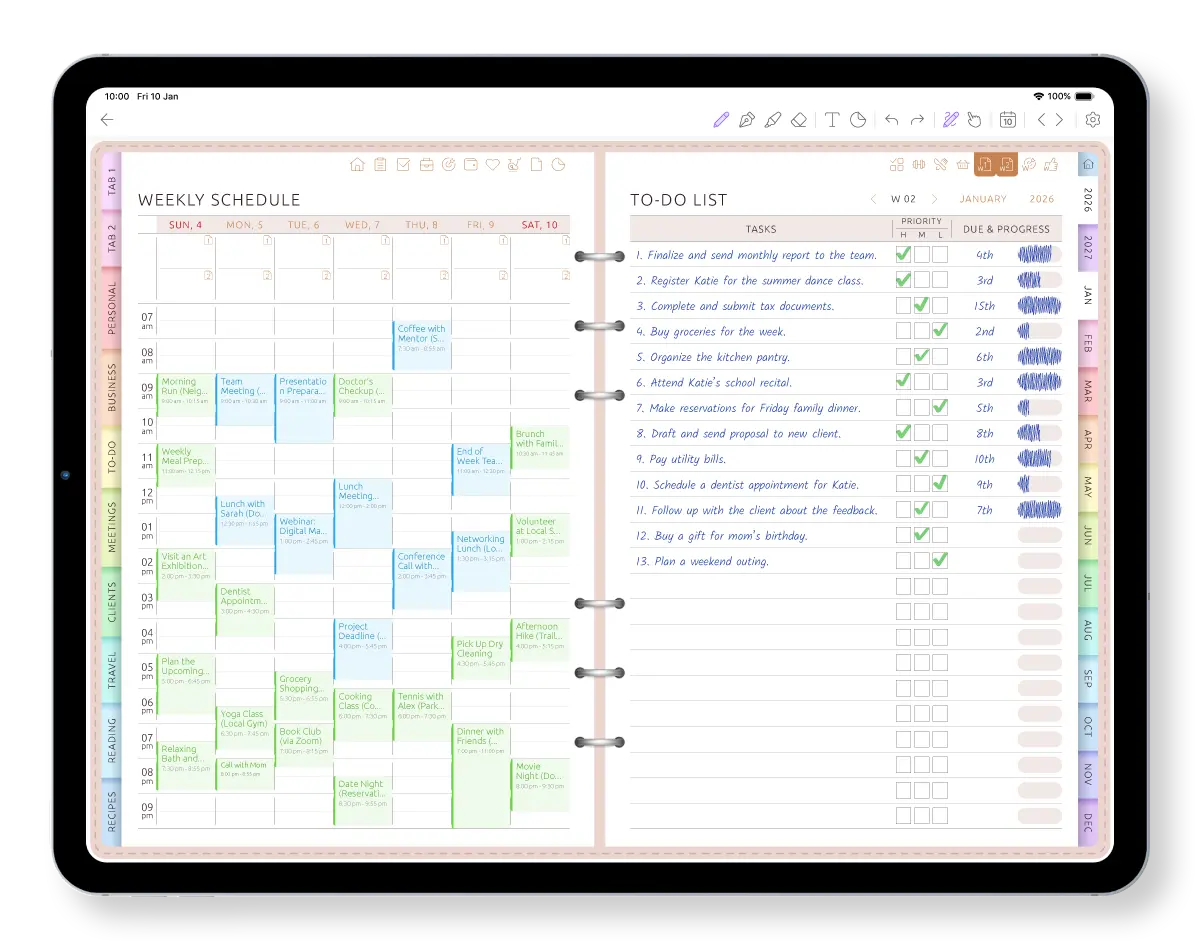
The weekly calendar shows what is already booked before you commit to another list. Meetings, appointments and classes sit in the schedule; the week's tasks sit on the facing page.
You can see that Tuesday is full and Thursday has space, then choose a realistic list for the week instead of treating every task as equally urgent.
- Events from Google Calendar and Apple Calendar on the weekly schedule
- A weekly to-do list beside the appointments
- Sunday or Monday start, 12- or 24-hour time and your own schedule hours
A checklist calendar: tick off what's done
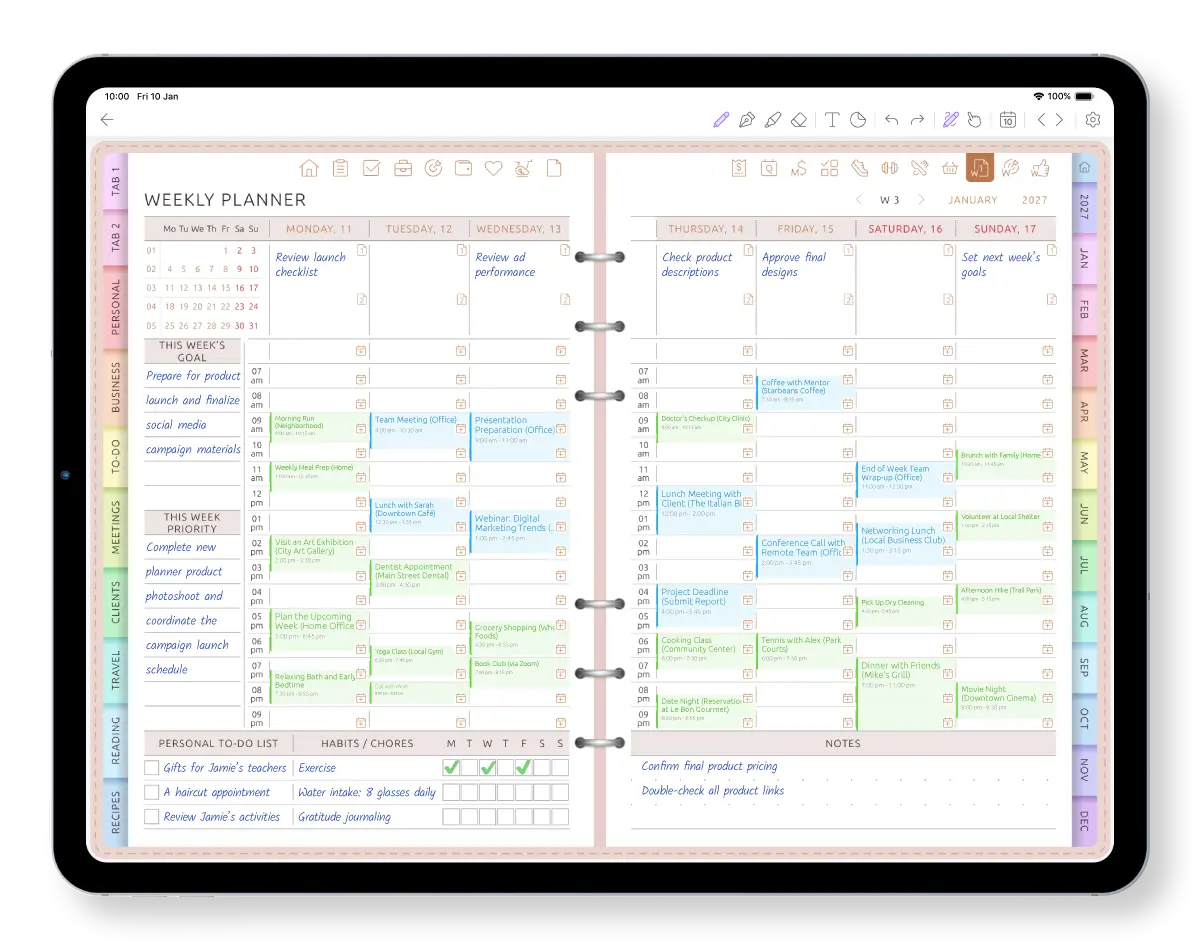
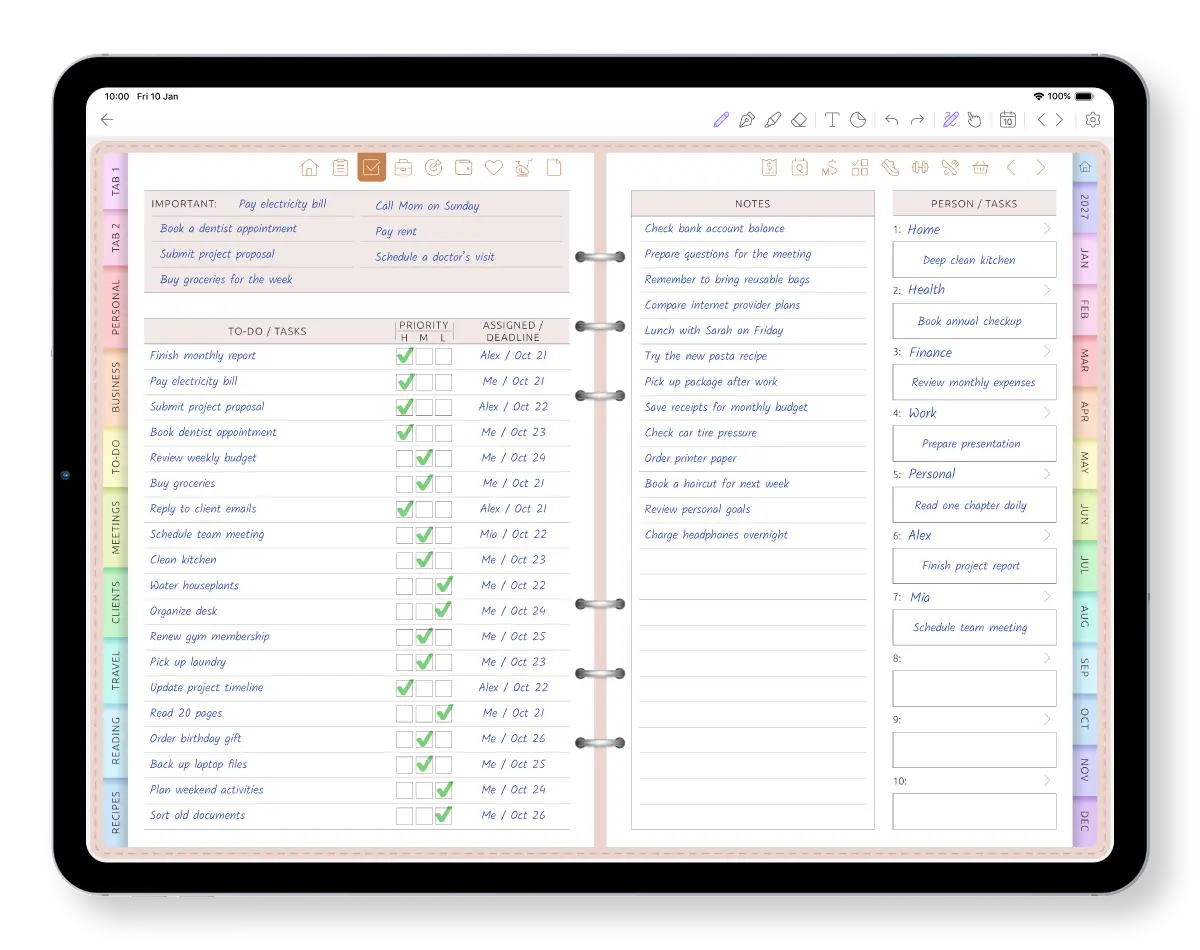
A to-do list feels good when you can check things off. The to-do layouts have real checkboxes: tap one to tick a task, or draw your own check mark with the pen.
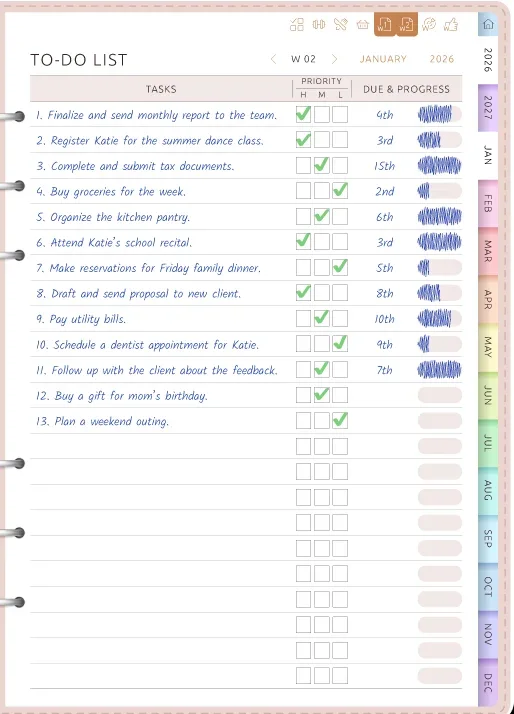
One to-do layout gives a whole page to the list, with a priority column — high, medium, low — and a column for the due date and progress, so your calendar checklist also shows what matters most.
- Top 3 for the day first, then everything else
- Priority, due date and progress on the full to-do list page
- Habit and chores grids on some weekly layouts
A monthly calendar with to-do list
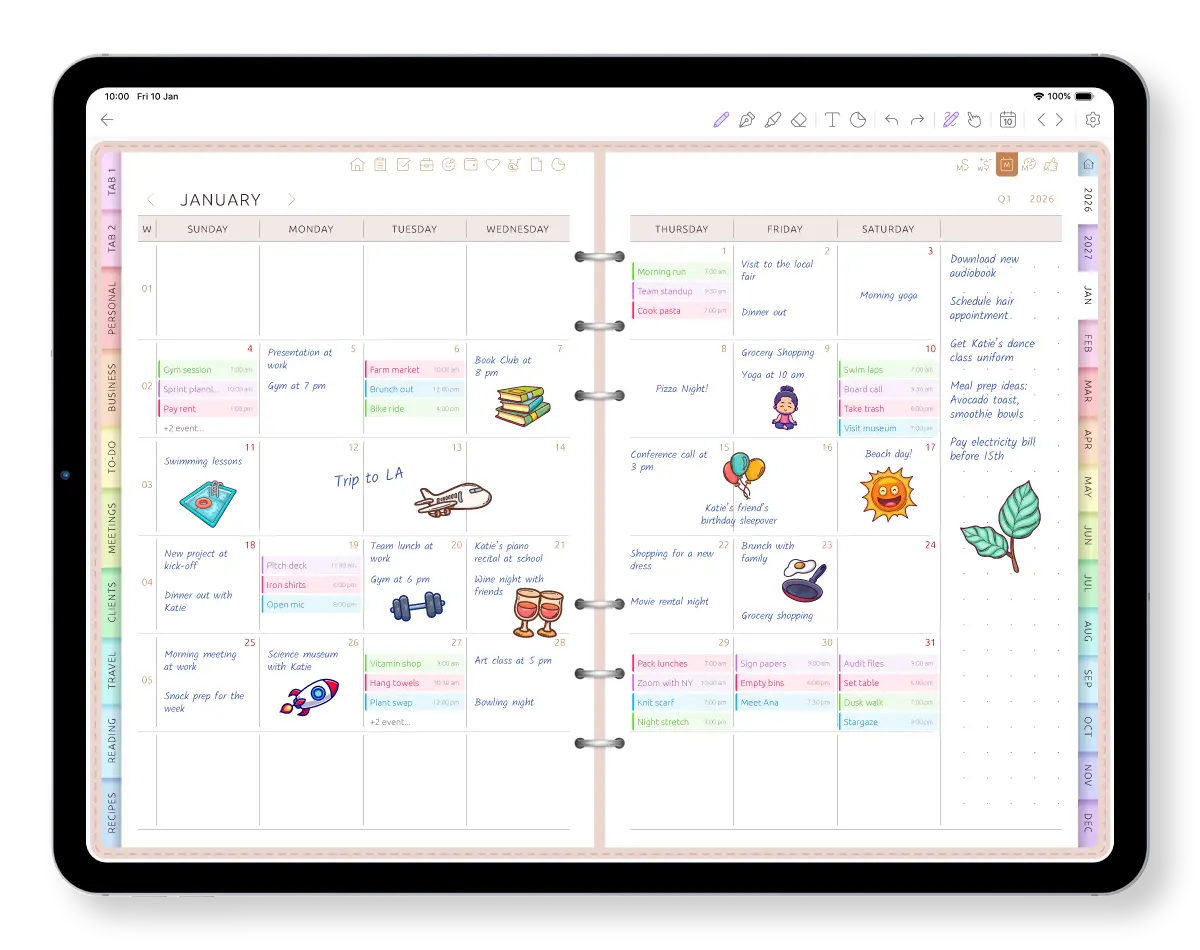
Some plans don't belong to an hour. On the monthly spread every date has its own box, so the month works as a calendar list and a monthly to-do calendar at once: bills on the 1st, the school trip on the 14th — and a column beside the grid for the month's to-dos, like “renew passport” or “pay the electricity bill before the 15th”.
Prefer your monthly calendar to-do list as a list rather than a grid? There's a monthly layout with one line per date, and a monthly summary with important dates, goals and notes. Switch layouts later without starting over.
A To-Do tab for tasks without a date
Not every task has a day yet. Tabs on the edge of the planner hold To-Do, Personal Notes, Business Notes, Meetings, Clients, Travel, Reading and Recipes. Park the “someday” tasks in To-Do. When you know when one matters, choose it for the week or add it to that day's list.
The calendar button brings you back to Today, This Week or This Month in one tap — even with the pen still in your hand.
Calendar, tasks and notes — without switching apps
See how the day's events, notes and tasks come together in one planner instead of separate apps.
Plan tomorrow on one page.
Start free. Connect your calendar whenever you're ready.
From everything you could do to three things today
Tasks do not move themselves. You choose what belongs to the month, the week and today, so an old list does not keep deciding your priorities for you.
-
Catch it
Write it on the month's to-do column, or in the To-Do tab if it has no date yet.
-
Choose the week
During weekly planning, pick the tasks that matter now. Your appointments already show how much time is actually available.
-
Pick today's Top 3
Choose three tasks for today and add the smaller ones underneath. The day's events show where they can fit.
-
Check them off
Tap the checkbox or draw the check mark. If something is unfinished, you decide where it belongs next.
Tasks do not roll over automatically. You choose what moves forward, so yesterday's unfinished list does not become today's clutter.
Calendar app, task app or planner page?
They solve different problems. Ultimate Planner is for visually choosing what fits around the time that is already booked.
Google / Apple Calendar events in the schedule
- Calendar app
- Yes
- Dedicated task app
- Depends on its calendar integration
- Ultimate Planner
- Yes — on daily, weekly and monthly pages
Tasks beside the day's appointments
- Calendar app
- Limited
- Dedicated task app
- Usually a list or separate view
- Ultimate Planner
- Yes — Top 3 and checklist beside the schedule
Write by hand beside the schedule
- Calendar app
- No
- Dedicated task app
- No
- Ultimate Planner
- Yes — pen or keyboard
Task reminders and recurring tasks
- Calendar app
- Depends on the calendar
- Dedicated task app
- Yes
- Ultimate Planner
- No
Automatic rollover of unfinished tasks
- Calendar app
- No
- Dedicated task app
- Often
- Ultimate Planner
- No — you choose what moves forward
Event reminders
- Calendar app
- Yes
- Dedicated task app
- Depends on the app
- Ultimate Planner
- Google / Apple Calendar keeps sending them
Use a dedicated task app if you need recurring tasks, automatic rollover and task notifications. Use Ultimate Planner when you want to see what is already booked and visually choose what fits around it. Compare dedicated to-do list apps →
Frequently Asked Questions
Your calendar and to-do list, united in one layout.
Start free on iPad, iPhone, Android or the web. Connect Google or Apple Calendar and plan your tasks around the day's events.