
Calendar with notes
Your Calendar Has the Events. Now Make Room for the Rest. Calendar notes on daily, weekly and monthly pages
Events from Google Calendar and Apple Calendar appear on your planner pages automatically. See the time that is already booked, then write, draw, add stickers and plan around it in the layout that works for you.
iPad, iPhone, Android and the web.
Start with the week you already have
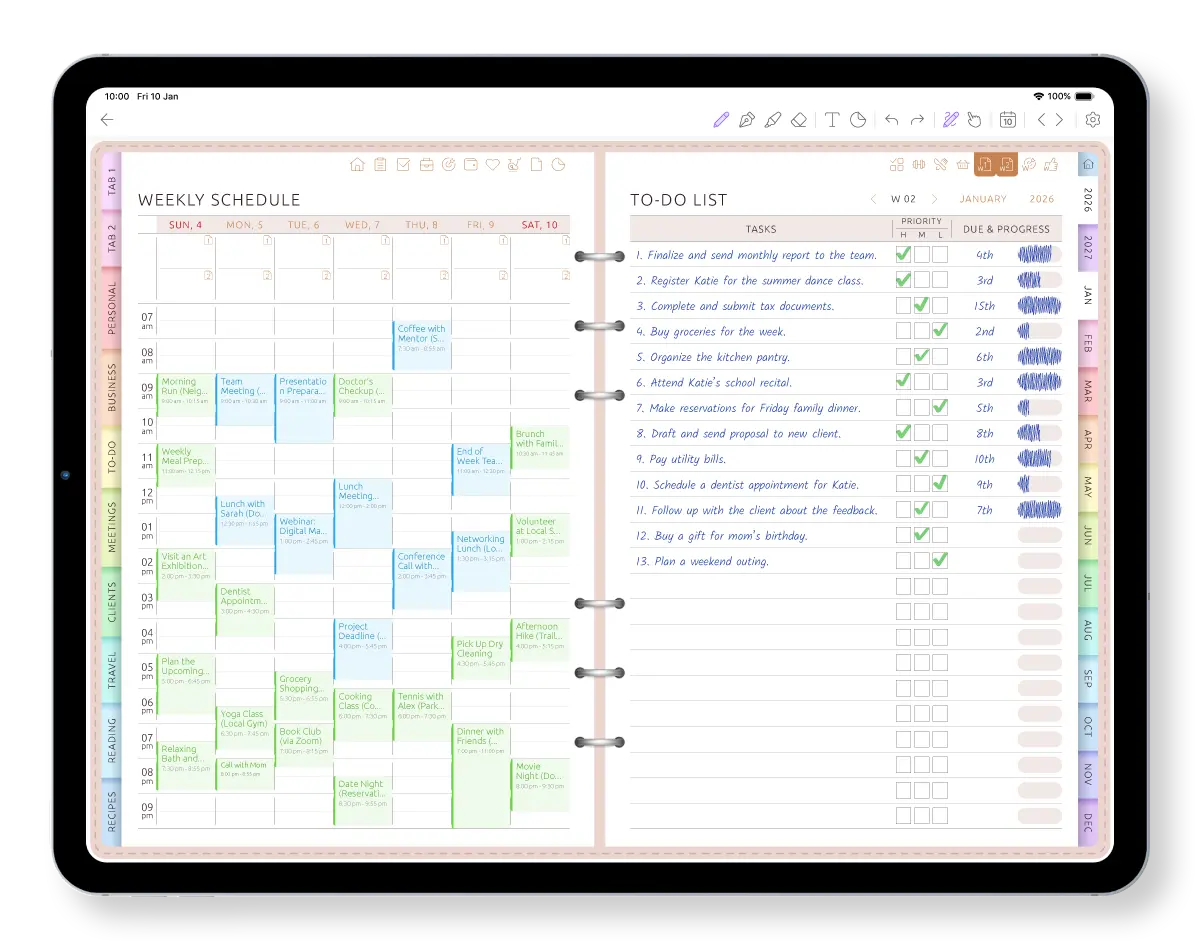
Meetings, appointments and personal events from Google Calendar or Apple Calendar are already placed in the weekly schedule. Instead of beginning with a blank page, you begin with the time that is actually available.
Add priorities, tasks and notes around the events without copying the schedule into another app.
Write around your schedule
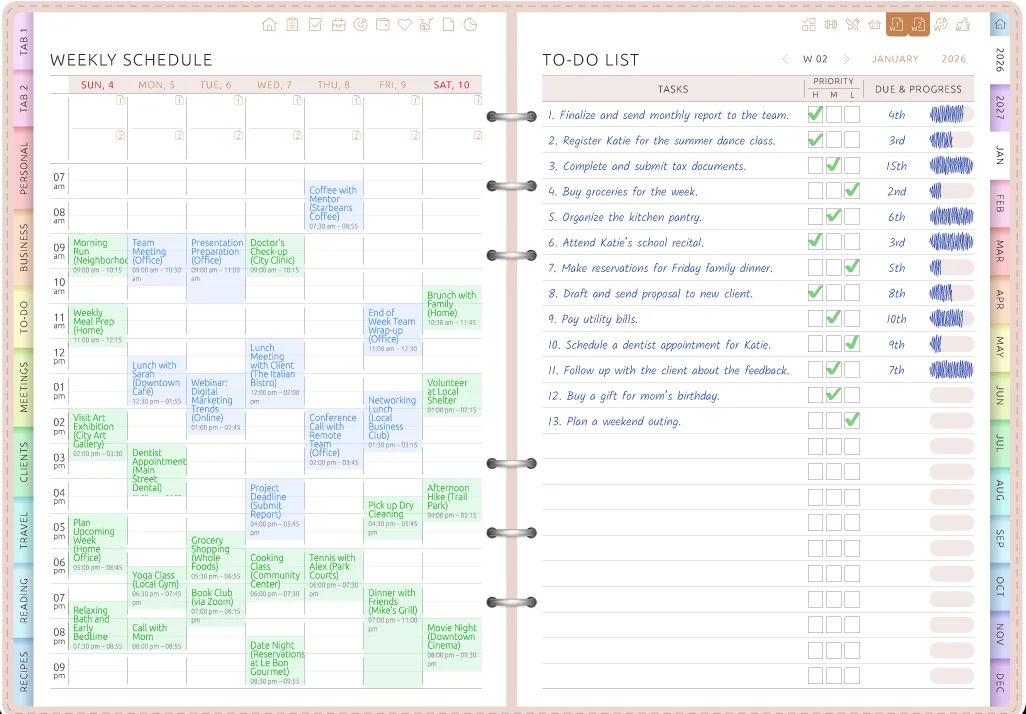
Calendar apps are good at storing appointments, but they leave little room to think around the week. On the planner page you can handwrite with Apple Pencil or a stylus, type, draw arrows, highlight a busy day, insert an image and add stickers beside the schedule.
Your events keep their calendar colors, so work and personal time remain easy to recognise while the rest of the page stays yours.
Choose the view that helps you think
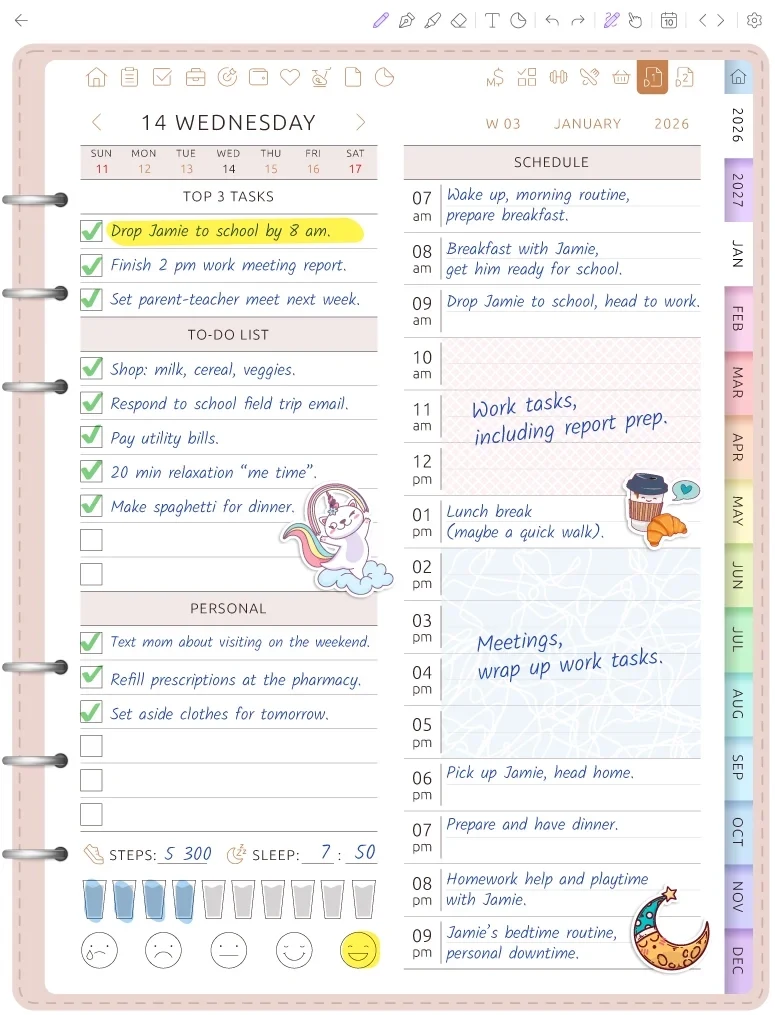
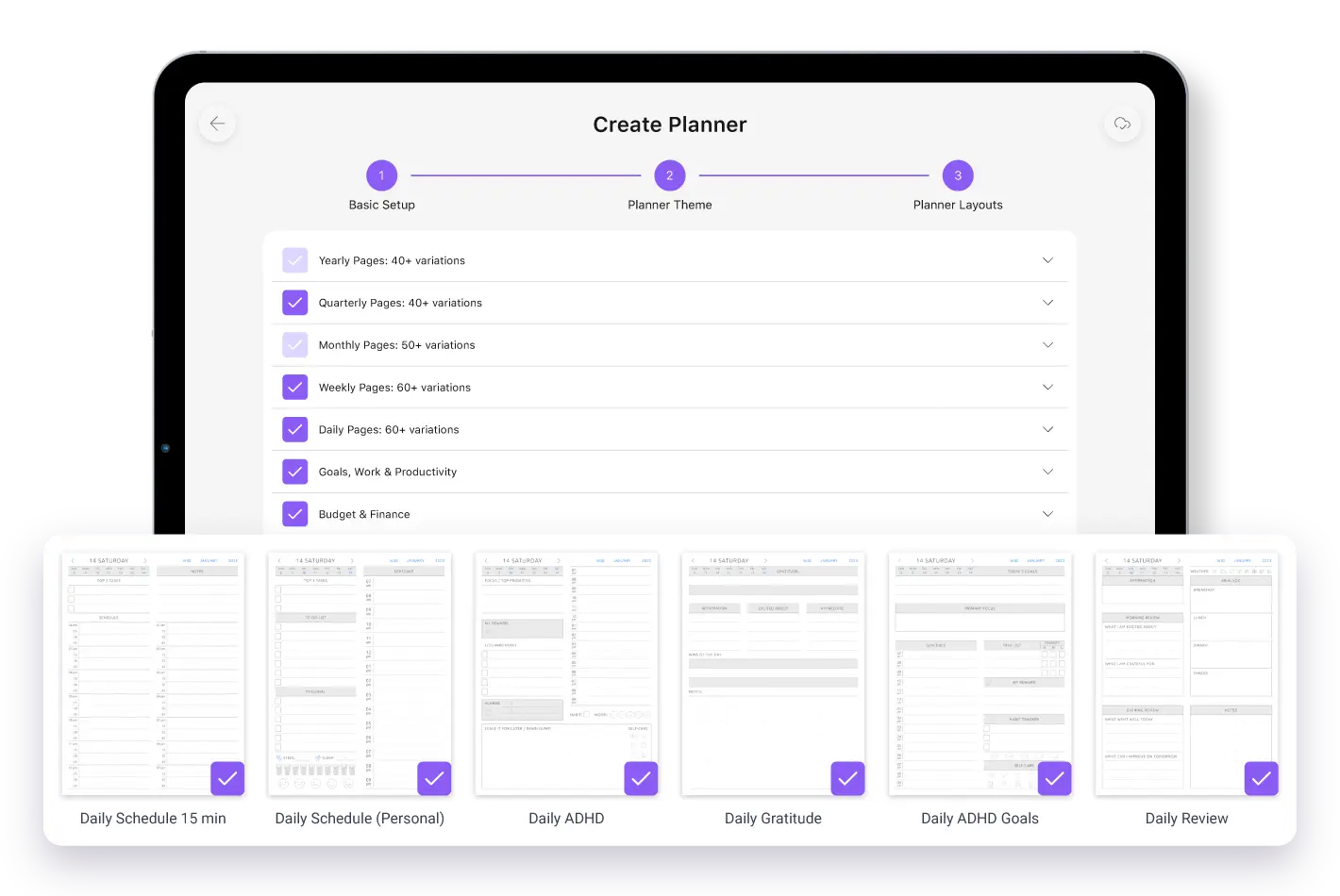
Plan one day in detail, see the full week beside your notes or use a monthly layout with room around every date. Ultimate Planner has more than 60 daily layouts and more than 50 weekly layouts, plus several monthly views.
Change the layout later when your routine changes. Writing on the other planner pages stays where it is.
Plan creatively around the events already there
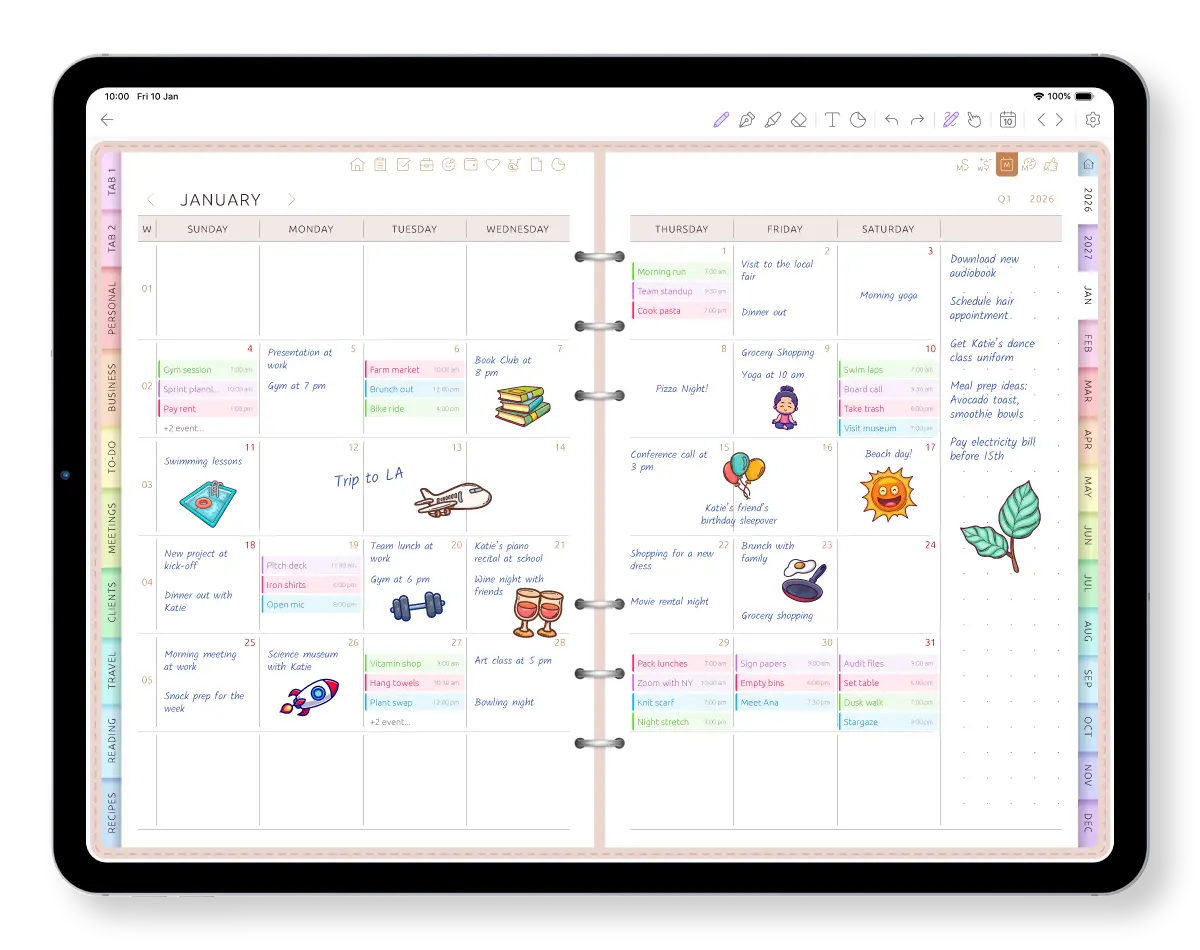
See calendar events appear in the schedule, then add handwritten notes and tasks around the week.
A monthly calendar with notes section — and room in every day box
A 2026 calendar with notes section, laid out like paper — with the parts paper can't do.
-
Write right in the day box
“Piano recital, 6 pm” fits on the 21st. Write it by hand or type it.
-
A notes column for the month
For everything that belongs to the month but not to one day: renew the passport, book the hair appointment, ideas for the weekend.
-
Month tabs on the edge
Jump to any month's notes with one tap — and back to today with another.
-
Next year's tab is already there
Keep a calendar 2026 with notes now and the 2027 one in the same planner. Any year up to 2034 is a tap away.
Four ways to lay out a monthly calendar with notes
Pick the one that matches how you think about a month — and switch later without starting over.
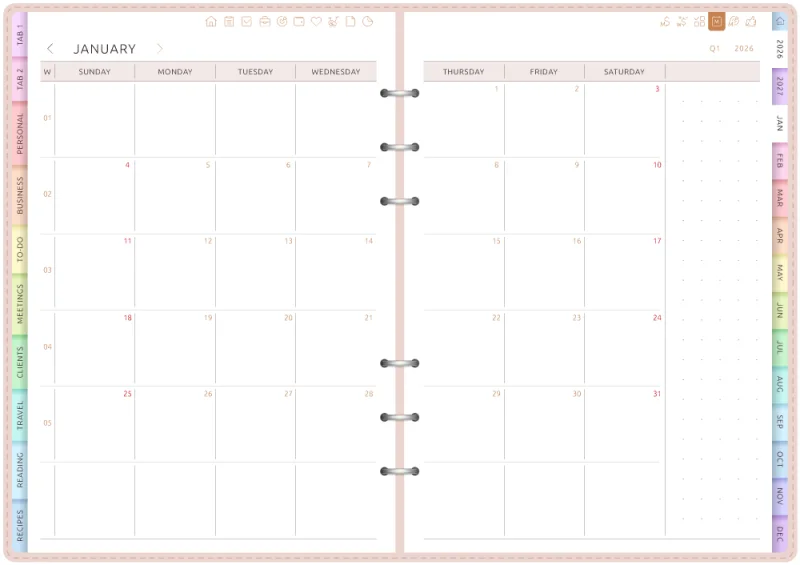
Notes column beside the month
The month across two pages, with a notes column on the right for everything that doesn't belong to a single day.
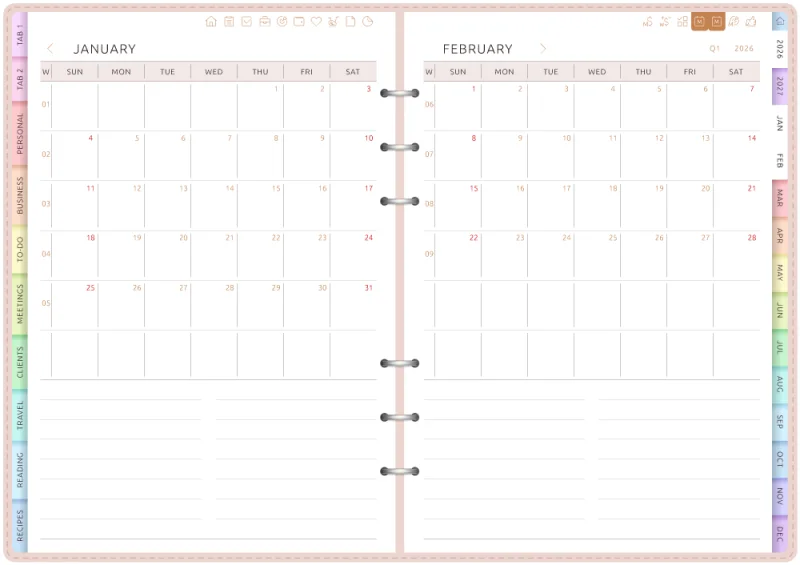
Lined notes under the month
A compact grid on top and ruled lines below — the classic calendar with notes section.
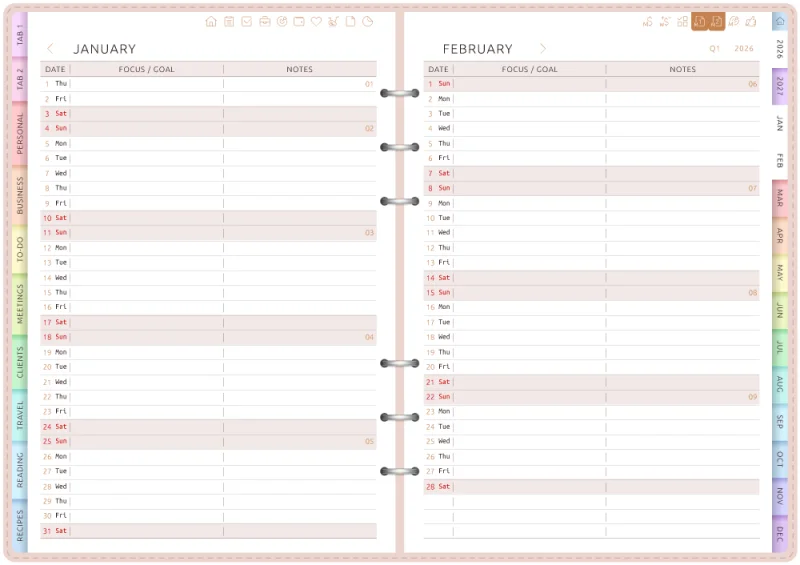
One line per date
Every date gets its own row with Focus / Goal and Notes columns; weekends are shaded.
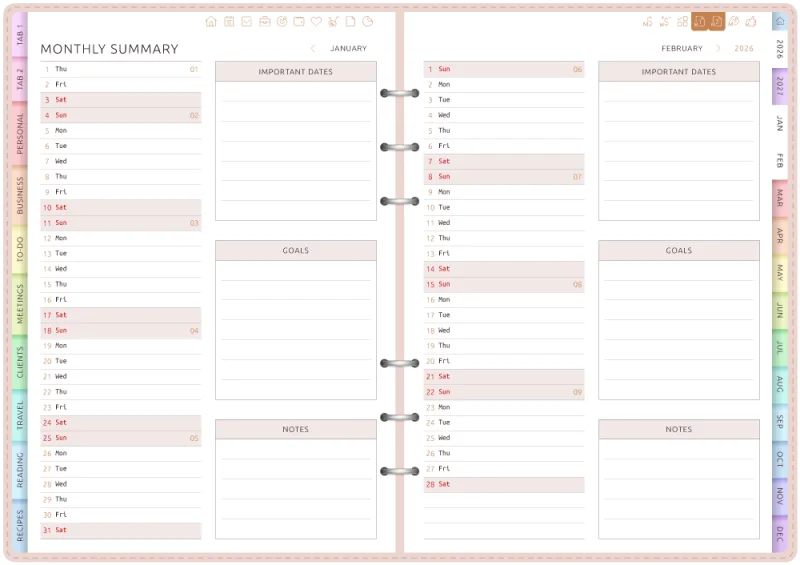
Monthly summary
The dates down one side, with boxes for Important Dates, Goals and Notes beside them.
Give every date room for notes.
Start free on iPad, iPhone, Android or the web.
Notes that don't belong to a date get their own tabs
A packing list, meeting minutes, a client's preferences, a recipe to try. Tabs on the edge of the planner hold them: Personal Notes, Business Notes, To-Do, Meetings, Clients, Travel, Reading and Recipes — one tap away from any page.
Need a blank page? Dot grid, ruled and square-grid note pages are in the index too. Switch sections on or off whenever you like, so your notes calendar holds just what you use.
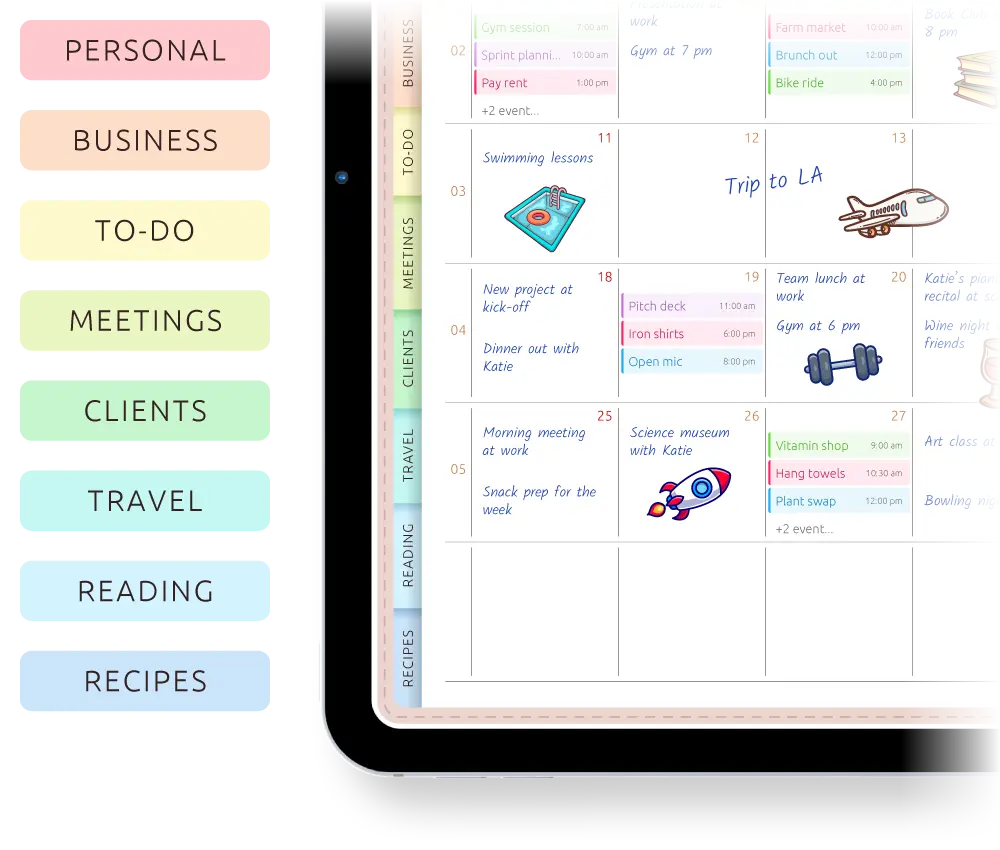
Notes that stay connected to your calendar
Navigate with a tap: Today, Week, Month, Quarter, or Year. Month tabs and date boxes take you straight to the page you need, so your notes are always easy to return to. It all works while you write — no need to put the pen down.
Your notes sync to every device you sign in on: write on the iPad at your desk, read it on your phone in the waiting room. The mobile apps work offline; the web version needs an internet connection.
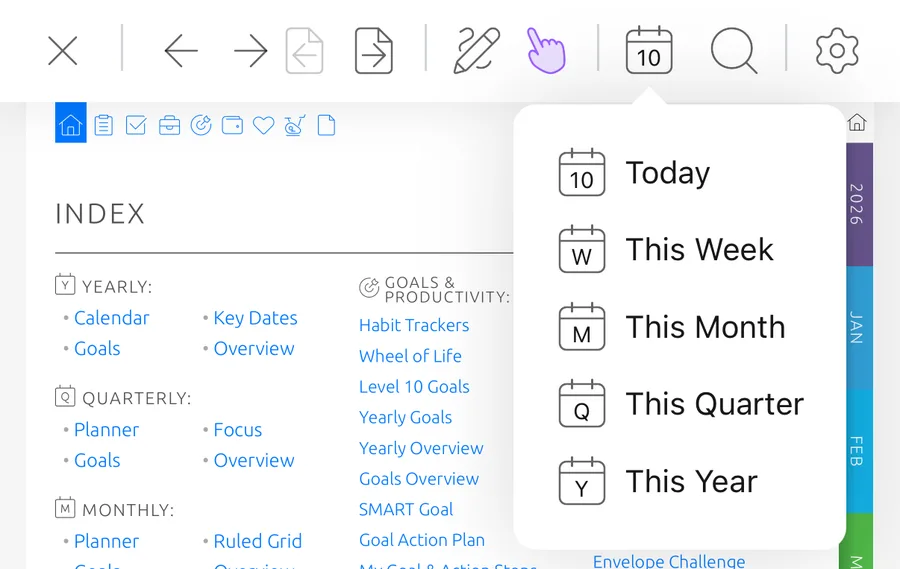
Calendar app, notes app or planner page?
A calendar knows when things happen. A notes app gives you room to write. Ultimate Planner puts both on the same page.
Events and notes on the same page
- Calendar app
- Limited to notes inside an event
- Notes app
- Notes, but no full schedule
- Ultimate Planner
- Yes — calendar events with room around them
Events on a daily page
- Calendar app
- Yes — a standard calendar view
- Notes app
- No
- Ultimate Planner
- Yes — 60+ daily layouts
Events on a weekly page
- Calendar app
- Yes — a standard calendar view
- Notes app
- No
- Ultimate Planner
- Yes — 50+ weekly layouts
Room for notes around the schedule
- Calendar app
- Limited
- Notes app
- Plenty, but separate from the calendar
- Ultimate Planner
- Yes — notes areas beside the schedule
Handwriting, drawings and stickers
- Calendar app
- No
- Notes app
- Depends on the app
- Ultimate Planner
- Yes — plus typing and images
Keep using Google Calendar or Apple Calendar for appointments and reminders. Ultimate Planner gives those events a planner page with room for everything around them.
Frequently Asked Questions
Give every date room for notes
Start free on iPad, iPhone, Android or the web. Connect Google or Apple Calendar and write your notes next to the day's events.