
For iPad, iPad Pro, Air and mini
Keep the Pencil. Drop the PDF. An iPad planner app that is ready from the first page
Open ready daily, weekly and monthly pages, then write with Apple Pencil or type. No planner file to buy, import into another app or set up before you can start.
Calendar events, flexible layouts, and intuitive navigation are built into the app.
iPadOS 17 or later. The same planner opens on iPhone, Android and the web.
What changes when your planner is an app, not a file
A PDF planner in a notes app can be a lovely file to write in. Ultimate Planner adds the things a static file cannot update for you.
-
Calendar events
In a PDF plannerIts “calendar links” open your calendar app. Every appointment still gets copied in by hand.
In Ultimate PlannerApple and Google Calendar events appear on your daily, weekly and monthly pages by themselves.
-
Layouts and sections
In a PDF plannerThe layout is printed in. Want daily pages or a different week? Buy and set up another file.
In Ultimate PlannerSwitch sections on or off and change layouts any time. Your notes on the other pages stay where you wrote them.
-
Future years
In a PDF plannerA new file every January: download, import, set the links up again.
In Ultimate PlannerGo to Year opens any year from 2026 to 2034 in the same planner, already set up.
Go to Year and other planner types are included with the All in One Access subscription. A PDF planner is a fine choice if you love one fixed design and write everything by hand. Comparing apps? See Ultimate Planner vs GoodNotes and Ultimate Planner vs Notability.
Open your planner on iPad today.
Nothing to import. Start free, write with Apple Pencil or type.
Write it by hand. Type it fast. Same page.
Some things are faster to scribble: a circle around Friday, an arrow from one task to another. Others are faster to type, like an address or a grocery list — especially on days when handwriting on glass looks messy. You don't have to choose: pick up Apple Pencil and write anywhere, or tap a field and type.
Once the app sees your Apple Pencil, the Pencil draws and your finger turns pages, ticks checkboxes and taps links — no switching tools back and forth. Want to draw with your finger instead? Set Finger in Drawing Mode to Draw in Settings.
No Pencil nearby? Type into the page fields, or draw with your finger.
- Pencil, marker and highlighter in the colors you pick
- Eraser, lasso, undo and redo
- Text boxes, your own images and 5,000+ stickers
- Palm rejection, so your hand can rest on the glass while you write
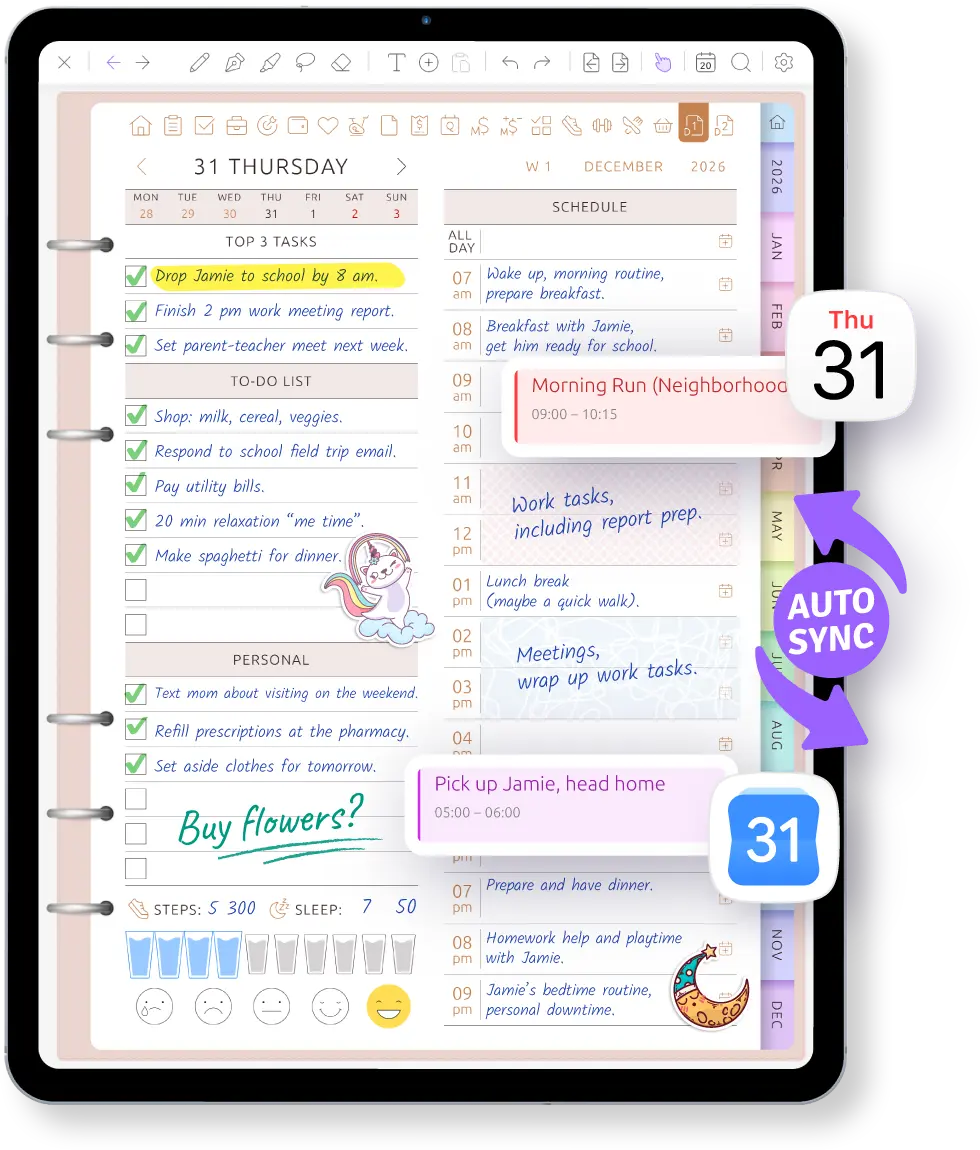
Your calendar is already on the page
Connect the calendars already on your iPad — iCloud and the Google accounts you added in Settings — and their events appear on your daily, weekly and monthly pages. The dentist at 3:30 is there before you write a word, so you plan around it instead of on top of it.
Plans changed? Move an event to another time or resize it directly on the planner page. The change is saved back to your calendar, while reminders keep coming from your calendar app.
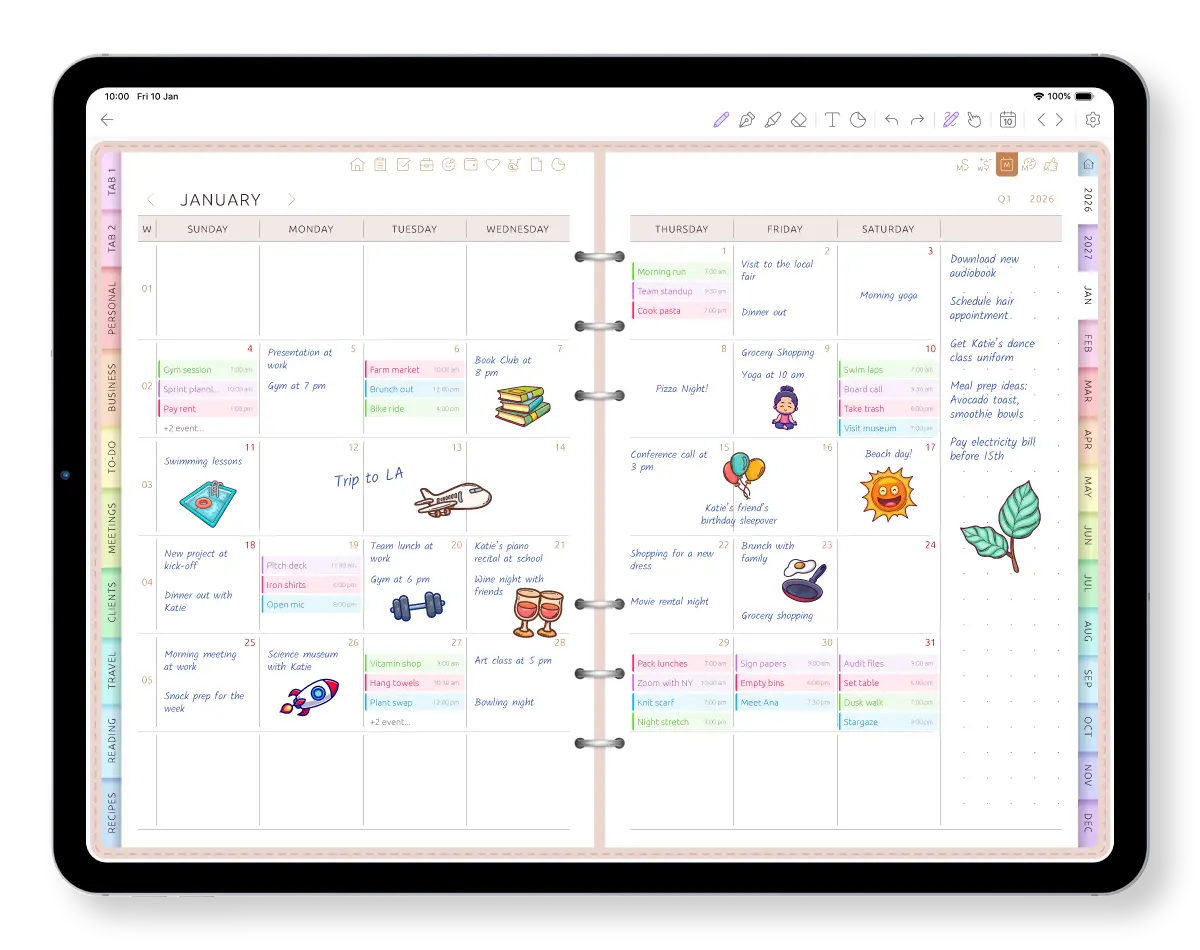
Links that work while you write
In a PDF planner, the tabs and links usually work only in reading mode: put the pen away, tap the link, pick the pen up again.
Here, month tabs and the Today, This Week, Month, Quarter and Year buttons work while you write. Check next Tuesday in the middle of a sentence and come straight back — the Pencil never leaves your hand.
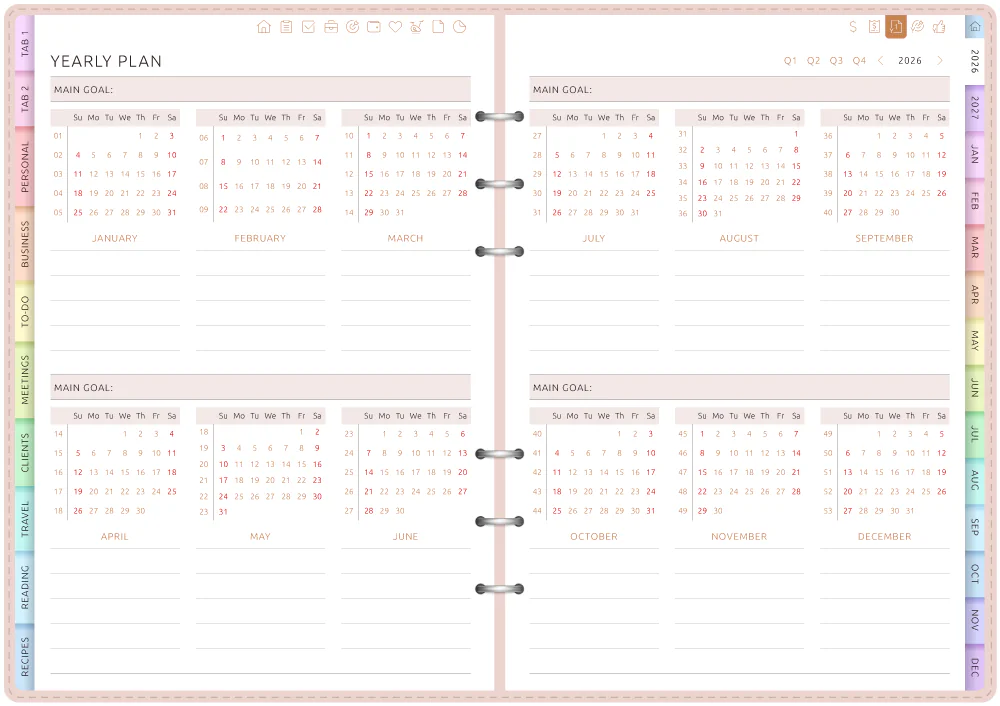
Turn the iPad. The planner follows.
There is no separate portrait or landscape planner file to choose before you start. Rotate the iPad and the planner adapts automatically.
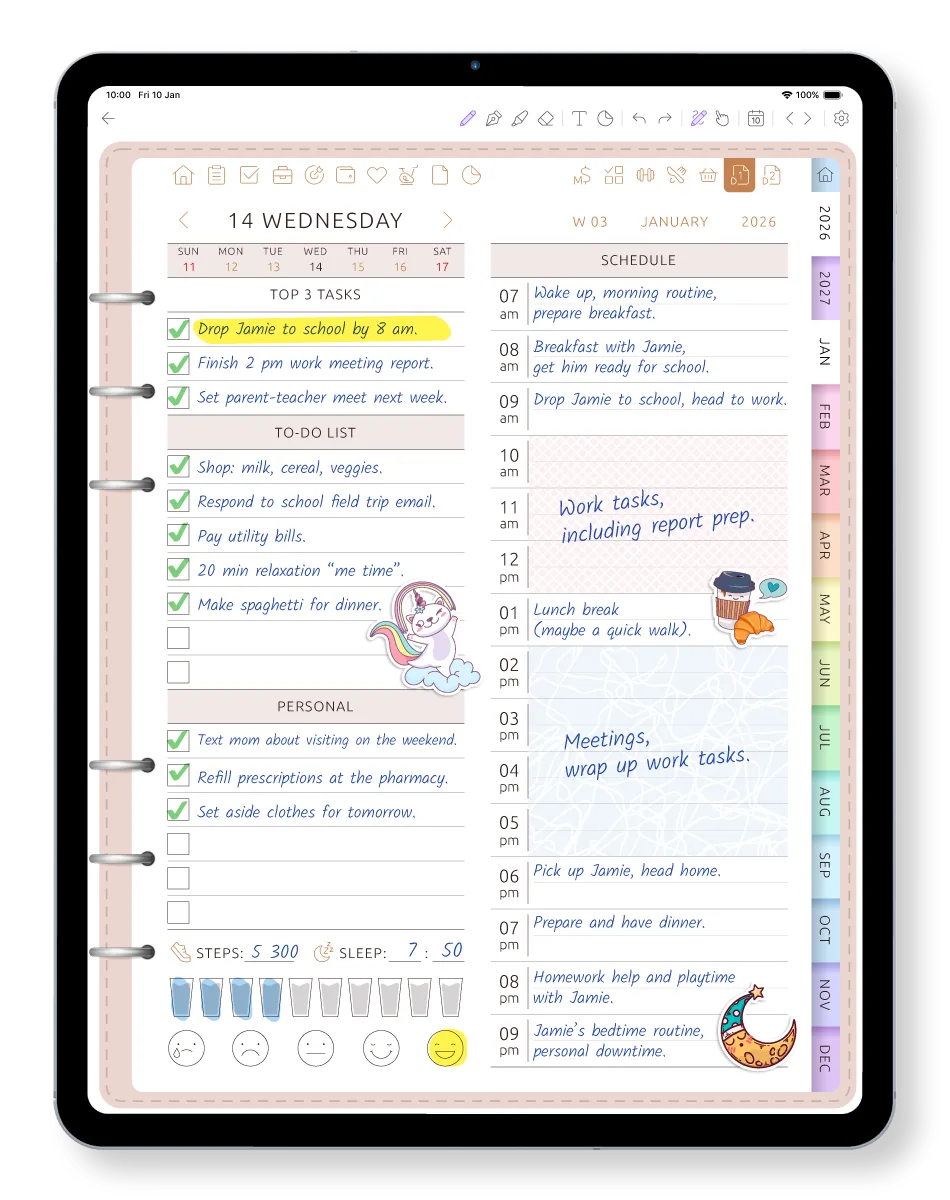
-
Adapts when you rotate
Turn the iPad and the planner follows — there is no orientation setting to change.
-
For every current iPad size
Use it on a standard iPad, iPad Air, iPad mini or iPad Pro running iPadOS 17 or later.
-
The same account on every device
Open your planner on iPhone, Android and the web when the iPad is not with you.
Start with a layout. Change it when your routine changes.
Choose daily, weekly or monthly pages that fit the way you plan now. If your work, schedule or priorities change, switch layouts or sections without buying and importing another planner file.
Daily
Choose from 60+ layouts with schedules, priorities, tasks and room for notes.
Weekly
Choose from 50+ layouts, with your calendar events already placed.
Monthly to yearly
Use monthly spreads, quarterly plans and a year at a glance for the longer view.
Start free with the all-round Ultimate Planner. Additional planner types and subscription layouts are included with All in One Access.
Frequently asked questions
Open your planner on iPad today
Download the iPad planner app, start free with the Ultimate Planner, and connect your calendar whenever you're ready. Nothing to import, nothing to set up.