
Galaxy Tab · Android phones · S Pen
A Digital Planner App for Android — With Your Google Calendar on the Page
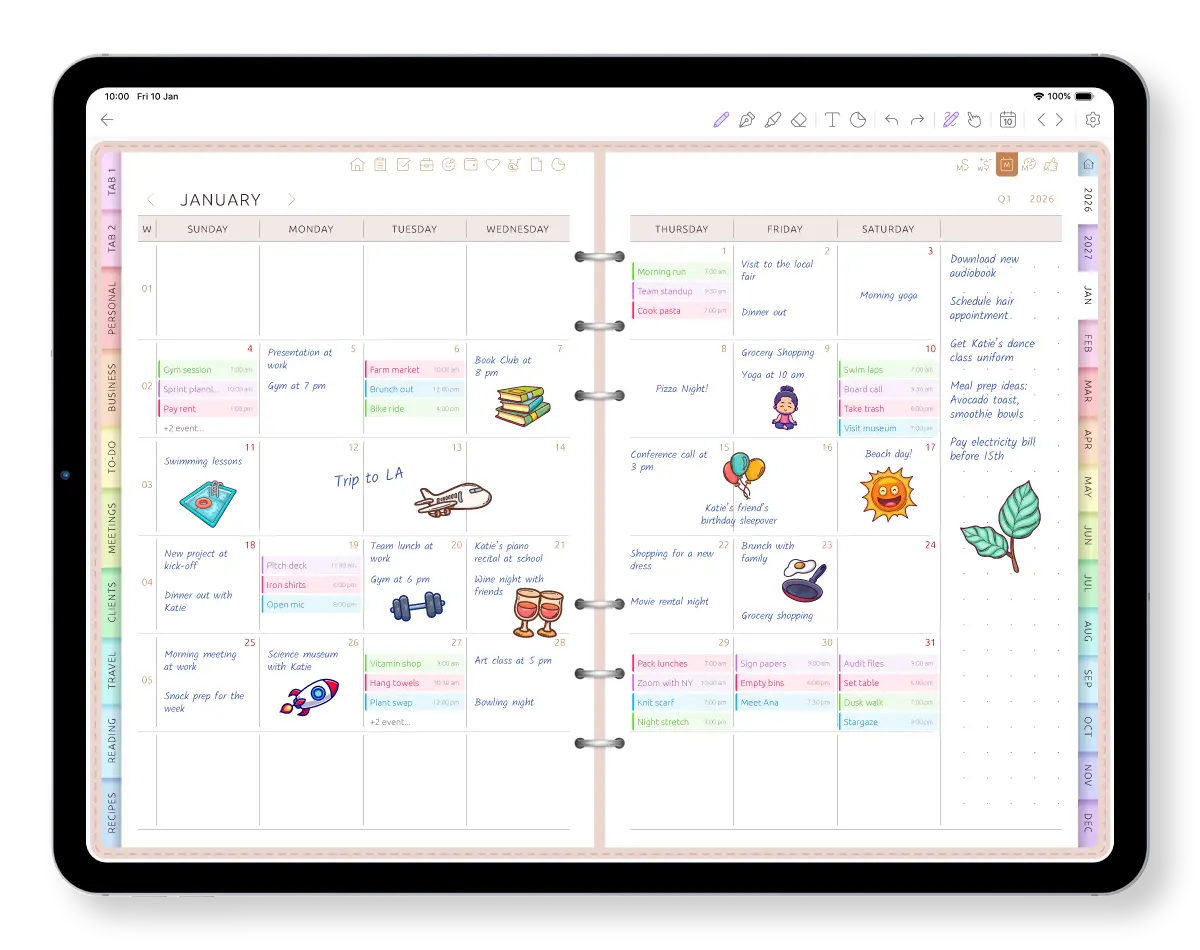
Your appointments appear on your daily, weekly and monthly planner pages automatically. Add tasks and notes around them with the S Pen or keyboard — without importing a PDF or copying the same event twice.
Start free on Galaxy Tab, Galaxy phones and other Android devices. The app works offline and syncs your changes when you are back online.
No PDF to import. No planner file to set up in a notes app.
Stop planning the same day in two different apps
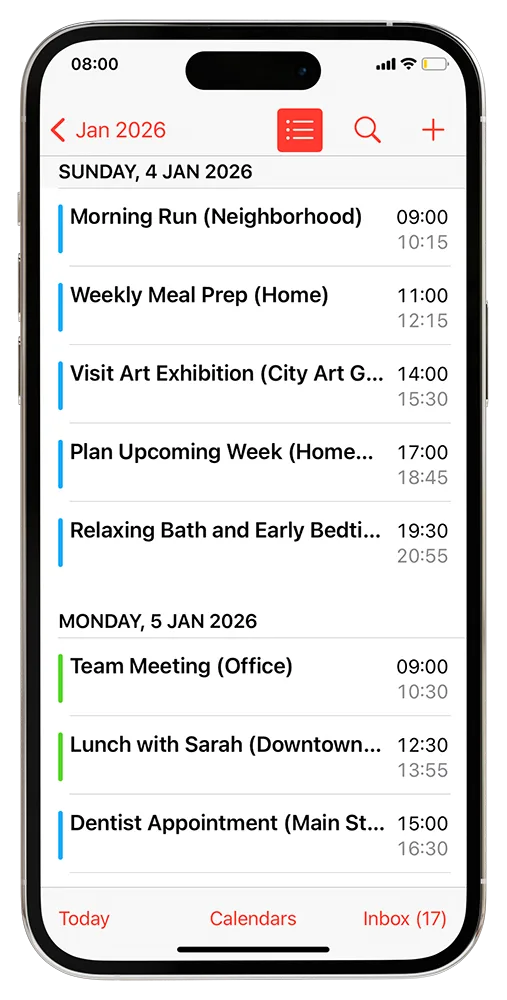
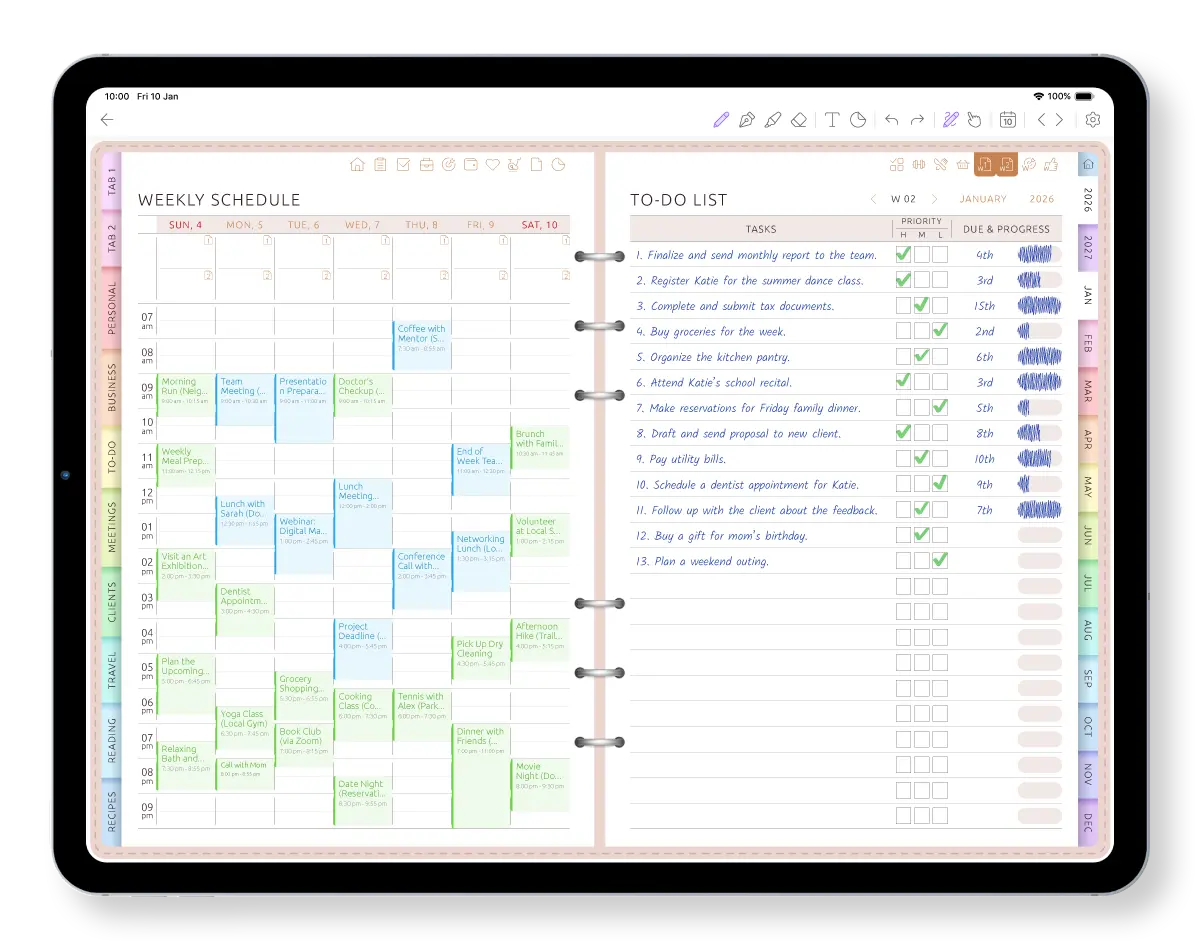
Before, appointments live in Google Calendar while tasks and notes live in a PDF. After, your calendar events are already on the planner page, with room to plan around them.
-
No copying
Change an event once in Google Calendar and the planner page shows the update.
-
Plan around reality
Write tasks and notes beside the appointments already fixed in your day.
-
One day, one page
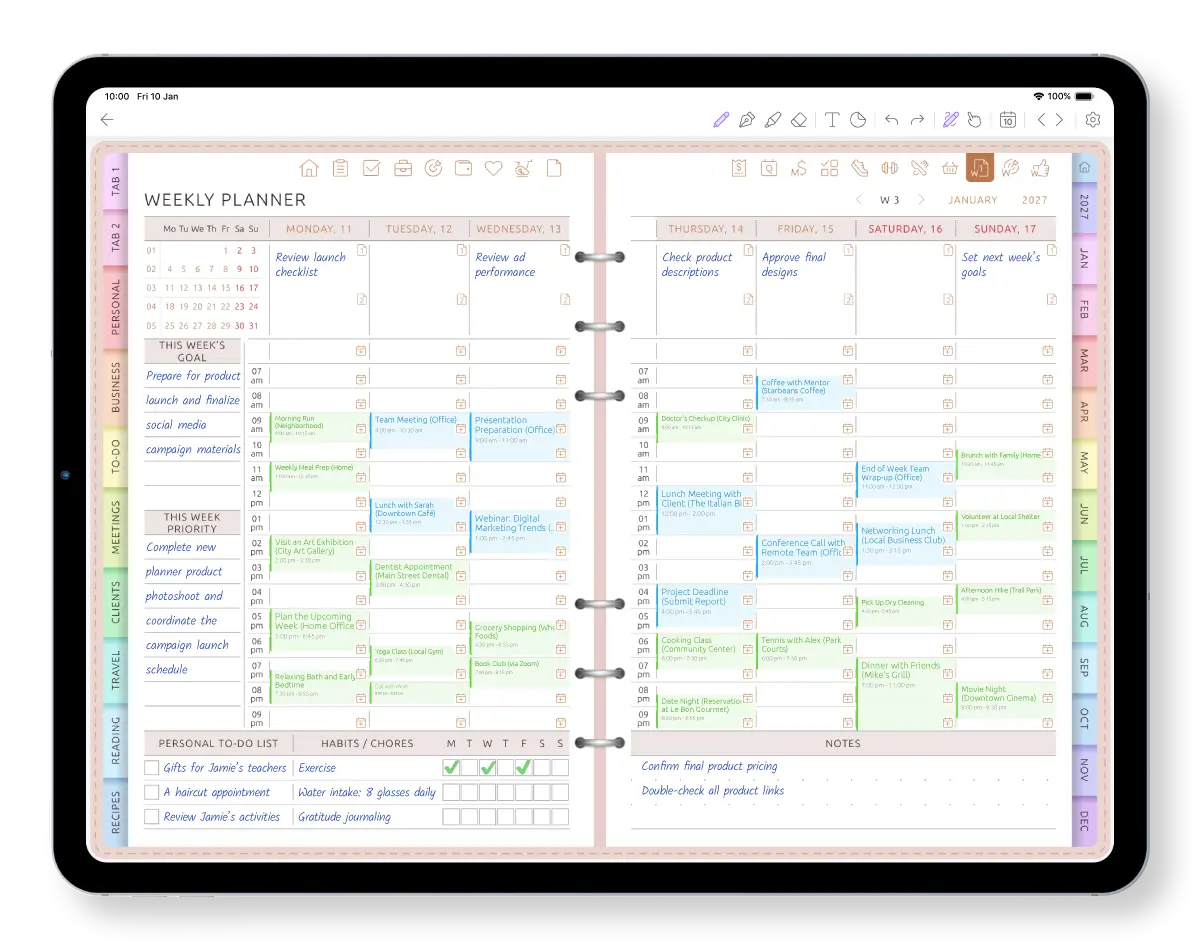
See the same calendar context on daily, weekly and monthly planner pages.
Planning on Android shouldn't mean settling for a workaround
Three problems come up again and again for Android planner users.
-
Problem
“The planner apps everyone recommends are made for the iPad. On Android they feel like an afterthought.”
— Galaxy Tab owner Solution
Ultimate Planner is a full app on Google Play, with the same planners and pages across Android, iPad, iPhone and the web.
-
Problem
“I bought a PDF planner, then spent the evening importing it and figuring out which mode makes the links work.”
— Bought a PDF planner online Solution
Choose a planner and start. Dates, pages, tabs and links are already set up.
-
Problem
“My appointments are in Google Calendar, but my tasks and notes are somewhere else.”
— Plans from an Android tablet Solution
Google Calendar events appear automatically on your daily, weekly and monthly planner pages.
Stop copying events into your planner
Connect the Google accounts your Android device already syncs and choose the calendars you want to see. Work and personal events appear at their times on daily, weekly and monthly pages.
When an appointment changes in Google Calendar, the planner shows the update. Google Calendar keeps sending the reminders; Ultimate Planner gives you the page around the appointment for tasks, notes and decisions.
Your handwriting, not a font
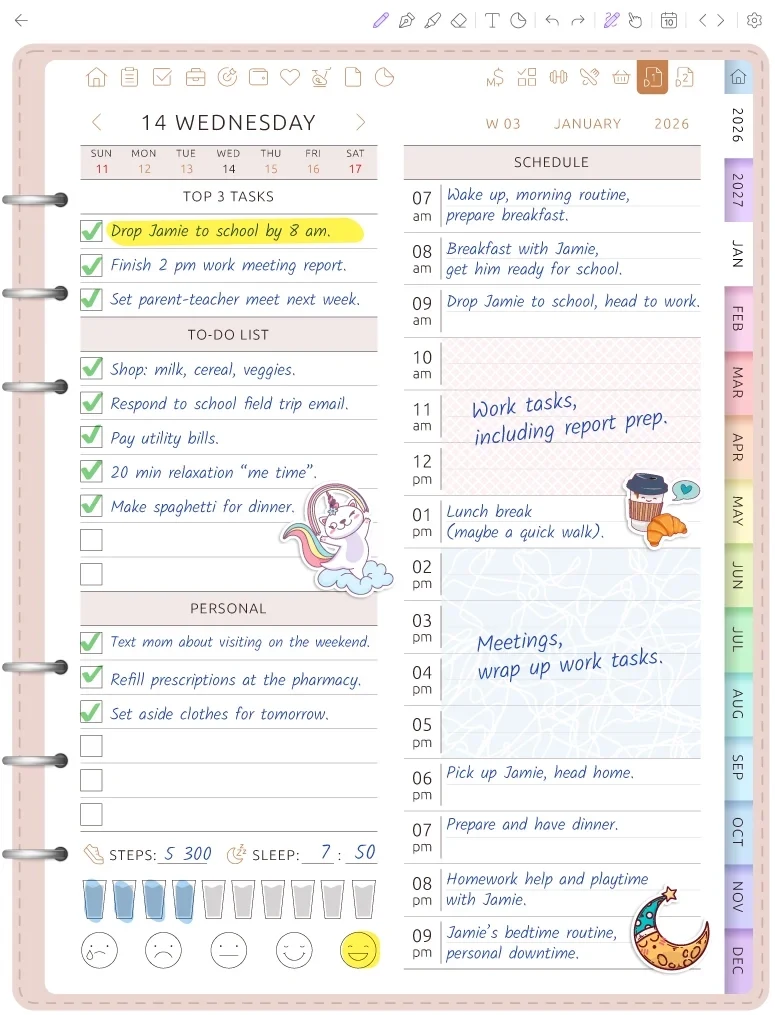
Write with the S Pen using the pencil, marker and highlighter, then move or erase what you wrote. Or type into the same page when the keyboard is quicker.
Once the app sees your S Pen, only the pen draws. Your finger turns pages, ticks boxes and taps links. You can change the finger behavior in Settings whenever you want.
A planner app — not another PDF file
There is no PDF to download, import or open in a special hyperlink mode. Choose a planner and its dated pages, tabs and links are ready.
If a daily or weekly layout no longer fits, swap the page layout without rebuilding the planner. The selected page changes, while all your handwritten and typed data on other pages stays untouched. With a PDF planner, changing the system usually means importing or starting a new file.
Galaxy Tab at home. Android phone in your pocket. Browser at work.
Sign in with the same account and open the same planner on Android, iPad, iPhone or in a browser on Windows, Mac and Chromebook.
The Android app works offline and syncs your changes when you are back online. The web version needs an internet connection.
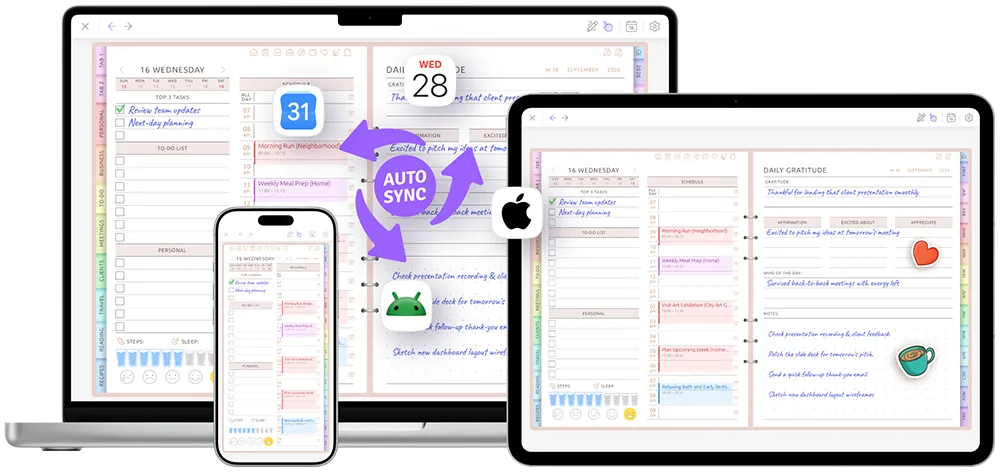
Plan your week as it really is.
Start free on Google Play. Connect Google Calendar when you're ready — no PDF to import.
A planner app or a PDF planner?
Both let you write with the S Pen. The difference is what happens when your calendar, year or way of planning changes.
| PDF planner in a notes app | Ultimate Planner | |
|---|---|---|
| Google Calendar events on planner pages | No automatic sync | Daily, weekly and monthly pages |
| Ready without importing a file | Buy, download and import | Choose a planner and start |
| Change layouts when life or work changes | Start a new file or rebuild the planner | Swap the page layout; writing on the rest of the planner stays |
| Start another year | Buy or import another file | Open the next year in the same planner |
| Android phone and browser | Depends on the notes app | The same account and planner |
| Works offline on Android | Usually | Yes |
Changing a layout replaces that selected page; entries on the other planner pages remain. Samsung Notes and Penly are good PDF tools, but the planner itself is still a fixed file. Full comparisons: Ultimate Planner vs Samsung Notes, Ultimate Planner vs Penly.
Start planning in three steps
No PDF purchase, download or import.
-
Install the Android app
Get Ultimate Planner from Google Play and start free.
-
Choose your planner and pages
Pick the format and layouts that fit how you plan. Dates, tabs and links are ready.
-
Connect Google Calendar and start writing
Allow calendar access, choose which calendars appear, then add tasks and notes with the S Pen or keyboard.
You can start free with Ultimate Planner and its free pages. Additional planner types and subscription layouts are available with All in One Access.
Frequently asked questions
Put your week on your Android tablet
Install from Google Play, choose a planner, and connect Google Calendar. Write with the S Pen or type; the Android app keeps working offline.