
iPhone · iOS 17 or later
Your Planner Is at Home. Your iPhone Isn't. A planner app for iPhone, with pages made for the phone
Open Today or see the whole week in seconds. Your Apple Calendar and Google events are already on the page, with space to type tasks and notes around them — in a Pocket format made for the phone.
Use the same planner on iPad for handwriting and on a computer for larger-scale planning in the web app.
iPhone on the go. Apple Pencil on iPad. More space to plan on PC and the web.
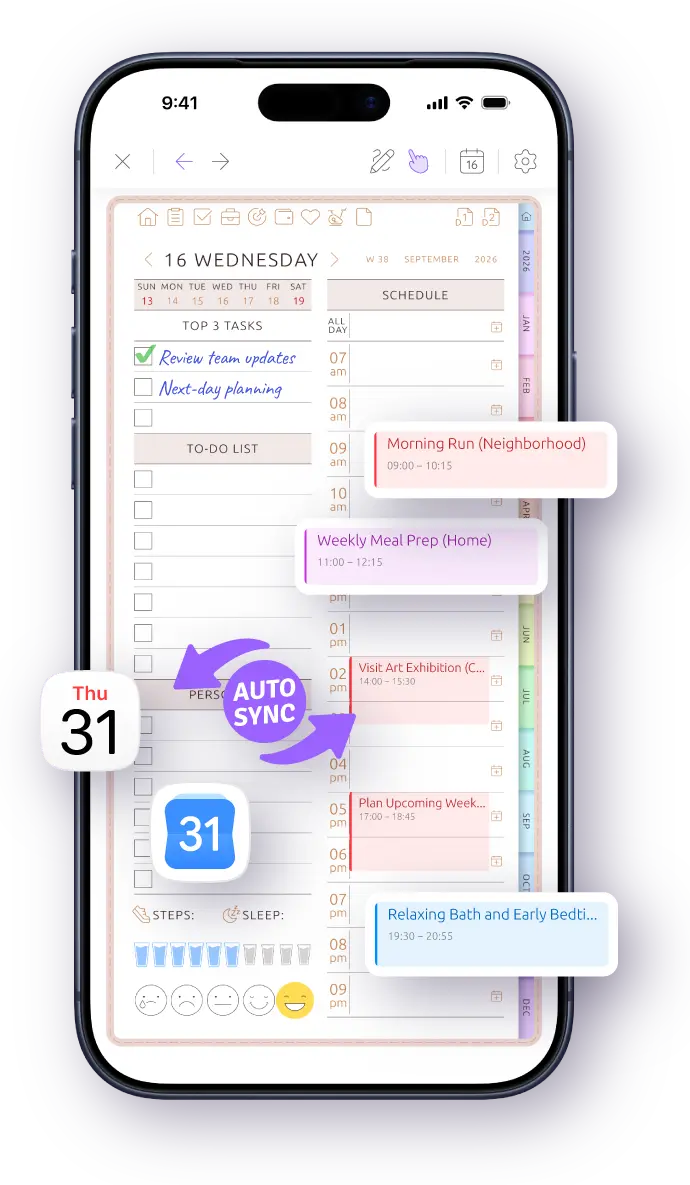
Put your planner where your phone is.
Start free on iPhone. Nothing to import.
A phone planner should not need pinch and zoom
Many digital planners begin as tablet pages. Open one on an iPhone and you get a spread the size of a stamp: pinch, zoom, then try to hit a tiny link.
A planner created on iPhone starts in Pocket format: a tall page designed for the phone screen, with navigation and month tabs within reach. It is not another phone-sized PDF file to import.
Pocket or Tablet format is chosen when the planner is created. Either format opens on every device where you sign in.
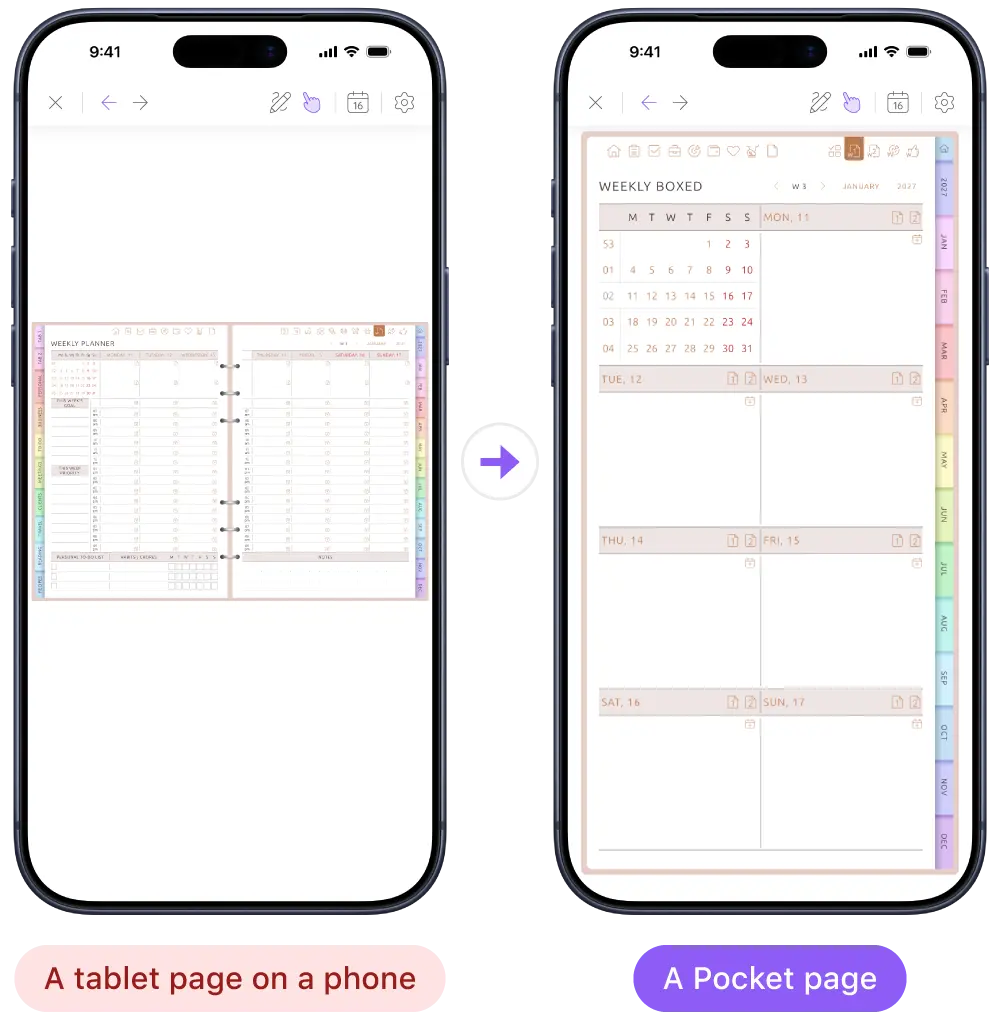
See the whole week — not just a list of events
Apple Calendar keeps your appointments, but it does not give you one weekly planner page with all your tasks and notes around those events. Ultimate Planner puts the whole week on one Pocket page, so you can see what is booked and what still needs to get done.
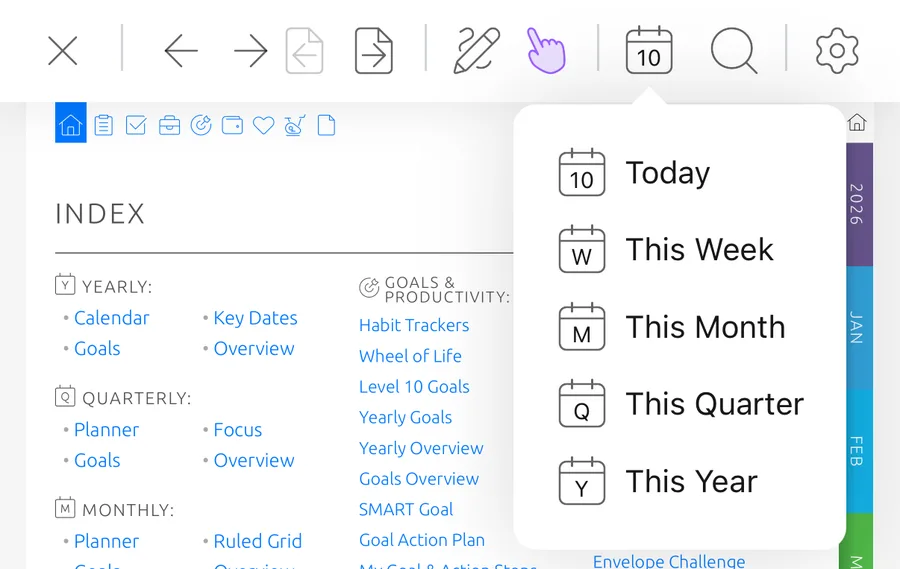
The calendar button jumps to Today, This Week, This Month, This Quarter or This Year from anywhere in the planner — no scrolling through pages to find the date.
- The week starts on Sunday or Monday, following your iPhone's region until you change it
- 12- or 24-hour clock, and the hours on your schedule are yours to set
- Year, month, week and day pages link to each other: tap a date and you're there
Your calendar is already on the page
No more writing every appointment twice. The iPhone app uses the calendars your phone already has: iCloud, plus any Google account you've added to your iPhone. Allow access, switch on the calendars you want, and their events appear on your daily, weekly and monthly pages. The app never asks for your calendar passwords.
Plans changed? Move an event to another time or resize it directly on the planner page. The change is saved back to your calendar. Apple Calendar and Google Calendar keep sending your alerts; the planner is where the appointments and the rest of your week finally sit together. How calendar sync works →
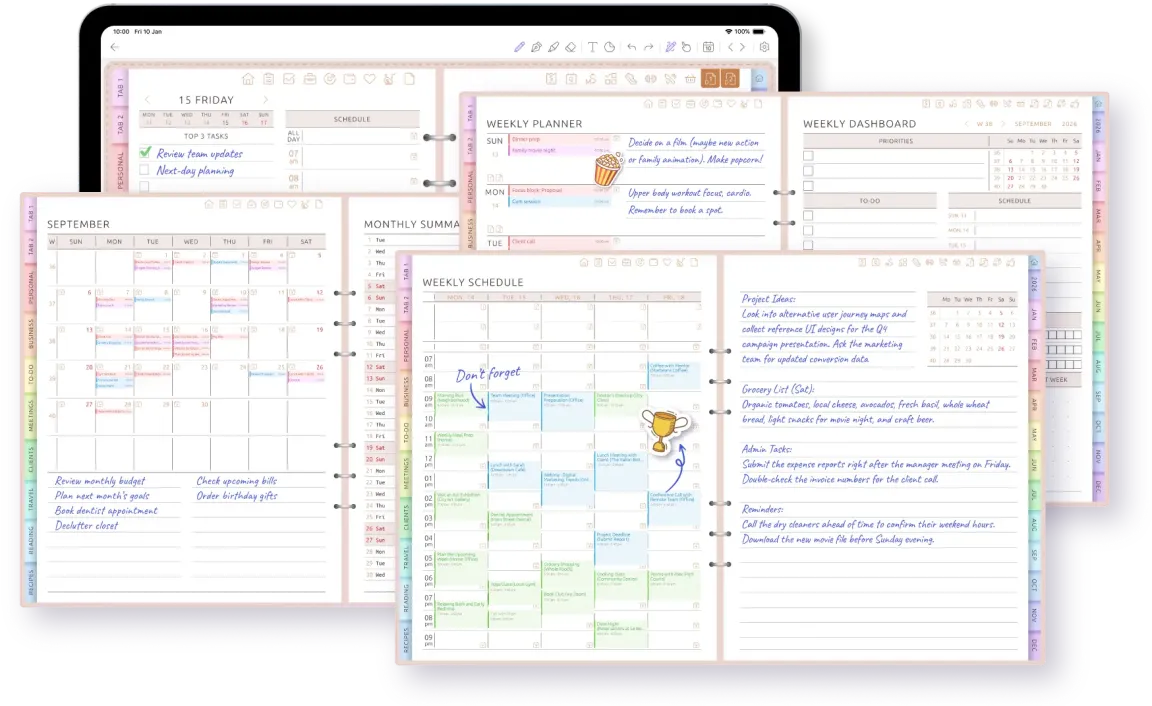
One planner. Three places to plan.
Use iPhone for the thought or task that appears while you are out. Type it straight onto the page and keep moving.
Open the same planner on iPad when you want to handwrite with Apple Pencil. For a longer weekly review or larger-scale planning, open the web app on a Mac, Windows PC or Chromebook and use the extra screen space. One account keeps the planner with you across them. See the iPad planner app → · See the web planner →
- iPhone — capture and check plans on the go
- iPad — write, draw and highlight with Apple Pencil
- PC and web — review the week and plan on a larger screen
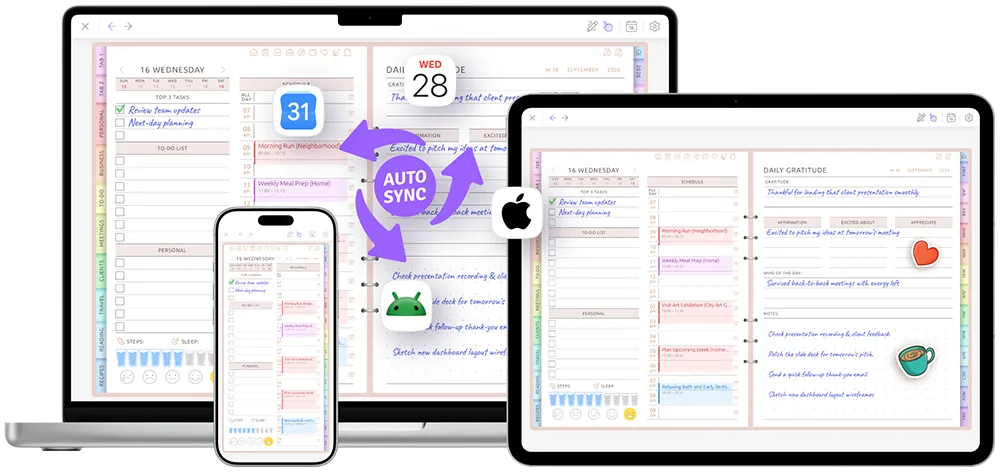
The same planner on phone, tablet and computer
See handwritten plans move with you from the tablet to the phone and the web.
A day with your planner in your pocket
Use the screen that fits the moment without losing the plan.
-
On the go
iPhone
Problem: Someone asks when you are free next week, but your tasks and appointments are scattered across different apps.
Solution: Open This Week and see calendar events, tasks and notes together on the weekly Pocket page.
-
In the moment
iPhone
Problem: A task or idea appears while you are away from your desk.
Solution: Open Today, type it onto the page and put the phone away.
-
Planning time
iPad or web
Problem: You want to review the week with more space than a phone gives you.
Solution: Continue in the same planner: handwrite on iPad or plan on a larger computer screen in the web app.
Your calendar holds the events. Your planner brings the rest of the week together.
Keep using Apple's built-in apps for events. Ultimate Planner adds the weekly page where appointments, tasks, and notes come together.
| Calendar + Reminders + Notes | Ultimate Planner | |
|---|---|---|
| Calendar events on a planner page | Events stay in Calendar | Daily, weekly and monthly pages |
| Tasks and notes around the schedule | Spread across separate apps | Add them directly to the planner page |
| Phone-sized planner pages | Lists and calendar views | Pocket format |
| Year, month, week and day linked together | Calendar views | Yes, plus a Today button |
| Apple Reminders imported automatically | They stay in Reminders | No — planner tasks are added manually |
| Calendar alerts | Yes | Keep coming from your calendar app |
Apple's apps are free, built in and good at what they do. Ultimate Planner does not import Apple Reminders or replace calendar alerts; it gives the whole day and week a page where you can plan around the events already there.
Built for the way a phone gets used
Quick looks, bad signal, new phones every few years. The planner is ready for all three — and works as an agenda app on iPhone, with tabs for to-dos, meetings, clients, trips, books and recipes.
No signal, no problem
Plan in the elevator, on the subway or in airplane mode. Your changes sync when you're back online.
A new iPhone is just a sign-in
Your planners live in your account, not on one phone. Sign in on a new iPhone, continue with Apple Pencil on iPad or open the web app on a computer.
Start free
Download it and start with the Ultimate Planner and its free pages. No planner file to buy, import or set up.
Frequently Asked Questions
Carry your planner in your pocket
Download the planner app for iPhone, connect Apple or Google Calendar, then continue with Apple Pencil on iPad or on a larger screen in the web app.